
Guide
Modify a document
How you modify a document depends on whether it is still a draft or already released.
Modify a draft document
- Open the document table in the Draft space and open the document.
- Click Edit in the page header and make your changes.
Modify a released document
Released documents are read-only, so modifying one creates a new version.
- Open the document in the Released space.
- Click Modify at the top right, or click the status and then Modify.
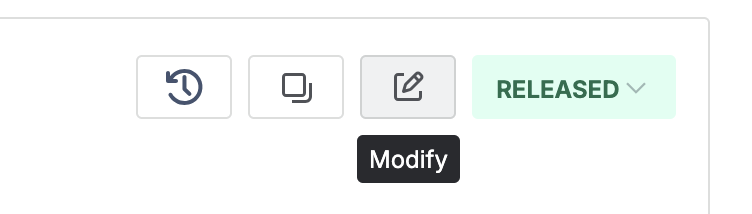
The document toolbar on a released document: history, copy, and modify, next to the Released status. - Enter the change description and verify the applicable products.
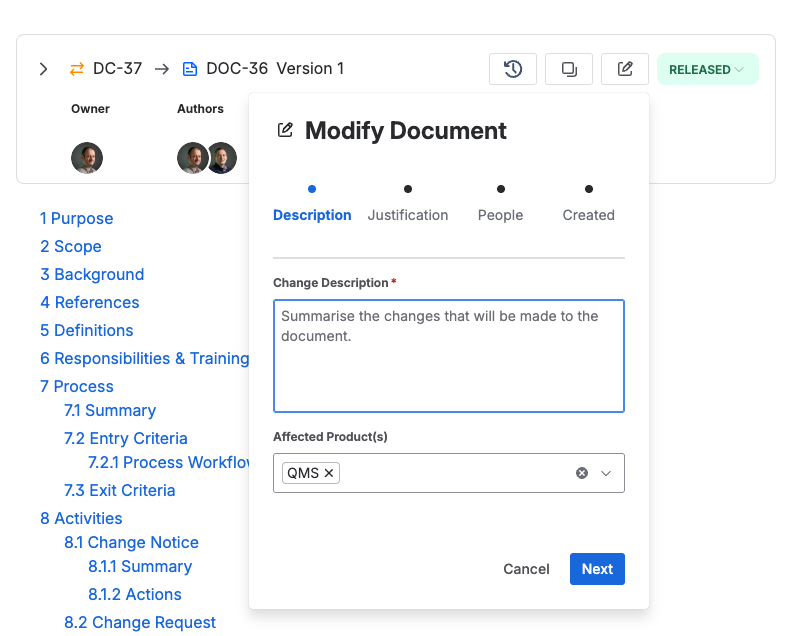
The change description and the affected products for the new version. - Enter the justification for the change.
- Enter the owner, authors, and approvers where you can.
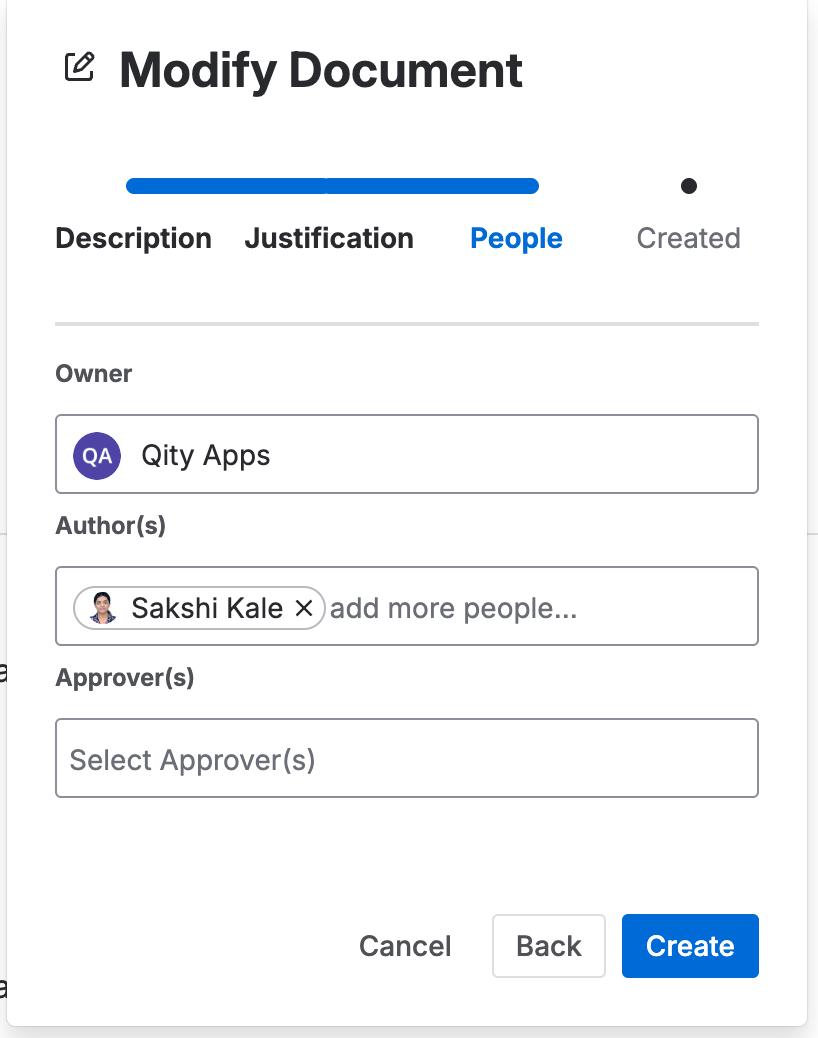
The owner, authors, and approvers for the new version. - Click Create. When the wizard reports the new version is ready, click Start editing.
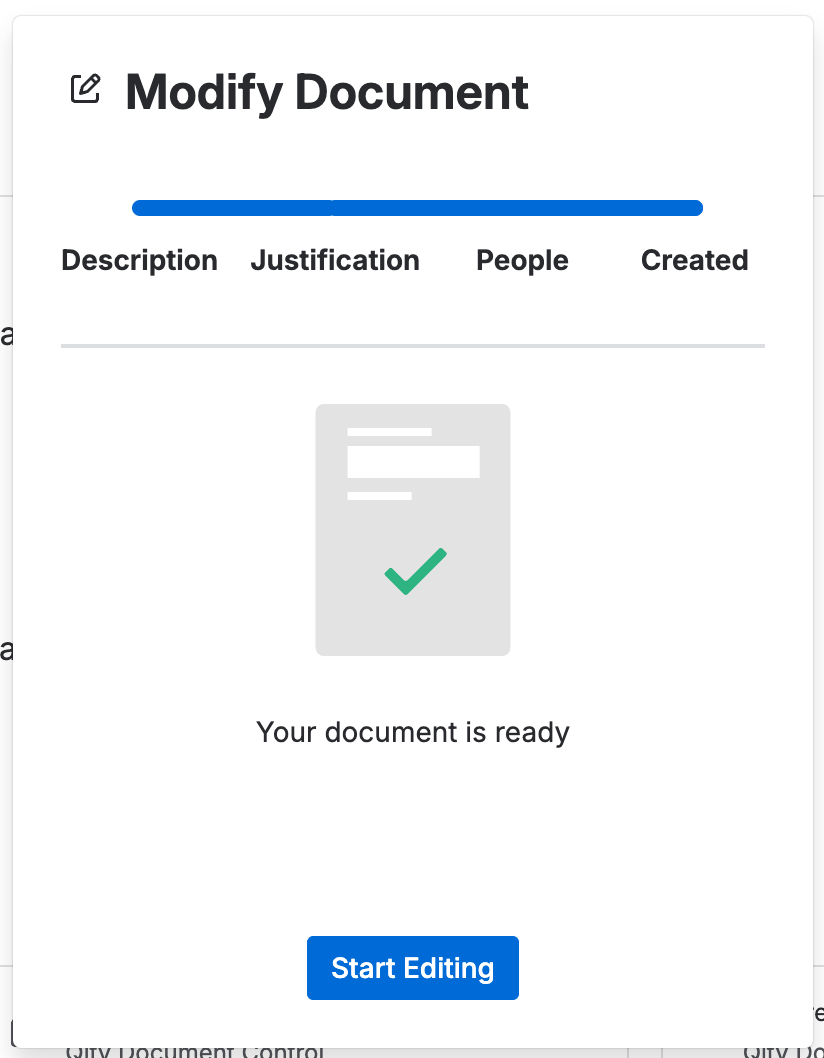
The final wizard step confirming the new version is ready to edit. - The previous released version now links to the new one, so anyone reading it can see a newer version is in progress.
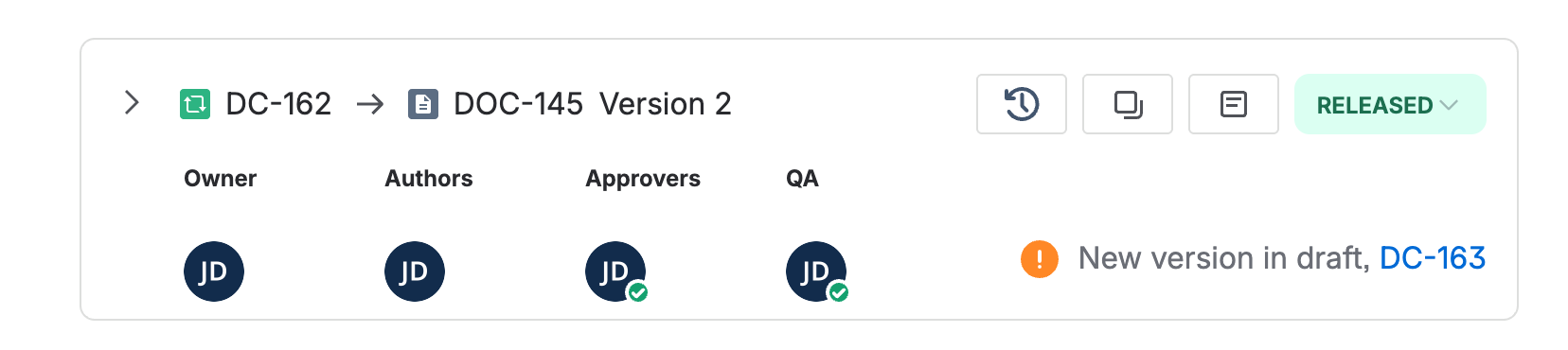
The older released version, carrying a link to the new version in draft.
A released document can never be edited in place. The Modify flow always produces a new, separately-approved version, and the previous one stays in the history.