
Manage parts
A part is a position in a bill of materials, and what fills that position is a component, a file, or another product. The part is where this product’s view of that item lives: how many are needed, what it costs here, whether it touches the patient, and how it is inspected on arrival.
Create a part
- In the Jira sidebar, open Apps and select Product Data.
- Go to the Part tab.
- Click New Part.
- Fill in the Summary and Description, plus anything else known at creation.
Complete the part
| Field | What goes in it |
|---|---|
| Type | What kind of part this is: an active component, a passive component, an assembly, or a document. |
| Description | What the part is and what it does in this product. |
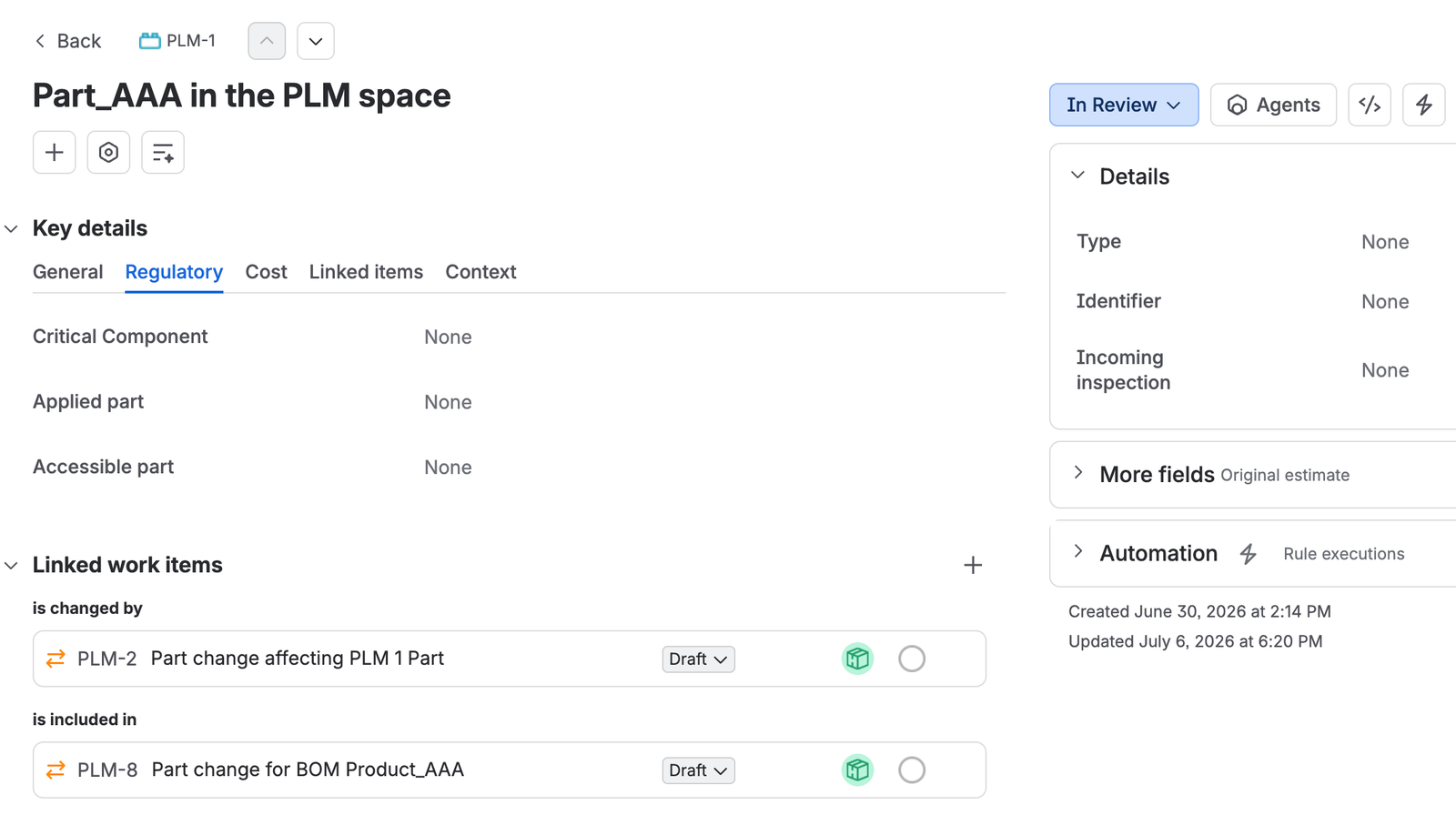
| Critical component | Whether this part is critical. This propagates: marking the part critical makes the linked component or file critical too. |
| Applied part | Whether this is an applied part, and if so which class. |
| Accessible part | Whether this part can be touched during normal use. |
| Unit cost, Quantity, Currency | What one costs, how many this product needs, and in which currency. The total is unit cost times quantity. |
| Incoming inspection | Whether the part is inspected uniquely, inspected as a batch, or not inspected at all on receipt. |
| Identifier | The part of the UDI-DI that identifies this particular part. |
An applied part is a part that, in normal use, necessarily comes into physical contact with the patient for the device to do its job, or that can be brought into contact with them. An accessible part is any part that can be touched without a tool, by fingers or by the test probes the standard specifies, including through openings, covers, and gaps in the enclosure. Both are safety classifications, so answer them from the standard rather than from intuition.
Where a part is bought in or made by someone else, it is worth raising a PRS to document it and to request quotations.
Add the part to a bill of materials
- Go to the BOM tab, open the bill of materials, and select the part change you are adding to.
- Add the part to that part change’s Change scope link field.
- Add everything else this part change covers to the same field, so the change scope is the full set rather than a first instalment.
A part always sits between two part changes. The parent part change is what includes it in a bill of materials, and shows on the part as is included in. The child part change is what defines its implementation, meaning the product, file, or component that actually fills it, and shows as is changed by. A part with only one of the two is either in a structure that implements nothing, or an implementation that nothing uses.
Version a part
Parts follow the same rule as bills of materials: a part moves from Draft to Active only once a part change beneath it has been approved by an engineering change, and it becomes Inactive once all of them are obsolete. See Version a BOM or part with a part change.