
Run the product life cycle
The product life cycle is what stops a product being advanced further than its data justifies. Each phase has a checklist that has to be answered before the product can enter it, and each phase change is signed off at a review. Taken across the whole life, that evidence is the documented history of how the product was developed, released, and withdrawn.
The eight phases and why the same questions recur at each gate are described under Key concepts.
Create a checklist
- Click Create in the top bar and select the space the checklist is for, or open the product and click + to create one directly against it.
- If you created the checklist from the top bar, link it to a Product now.A checklist with no product is invisible: the life cycle space page will not pick it up at all.
- Set the PLC phase. This is the phase the checklist is an entry requirement for, not the phase the product is in today.
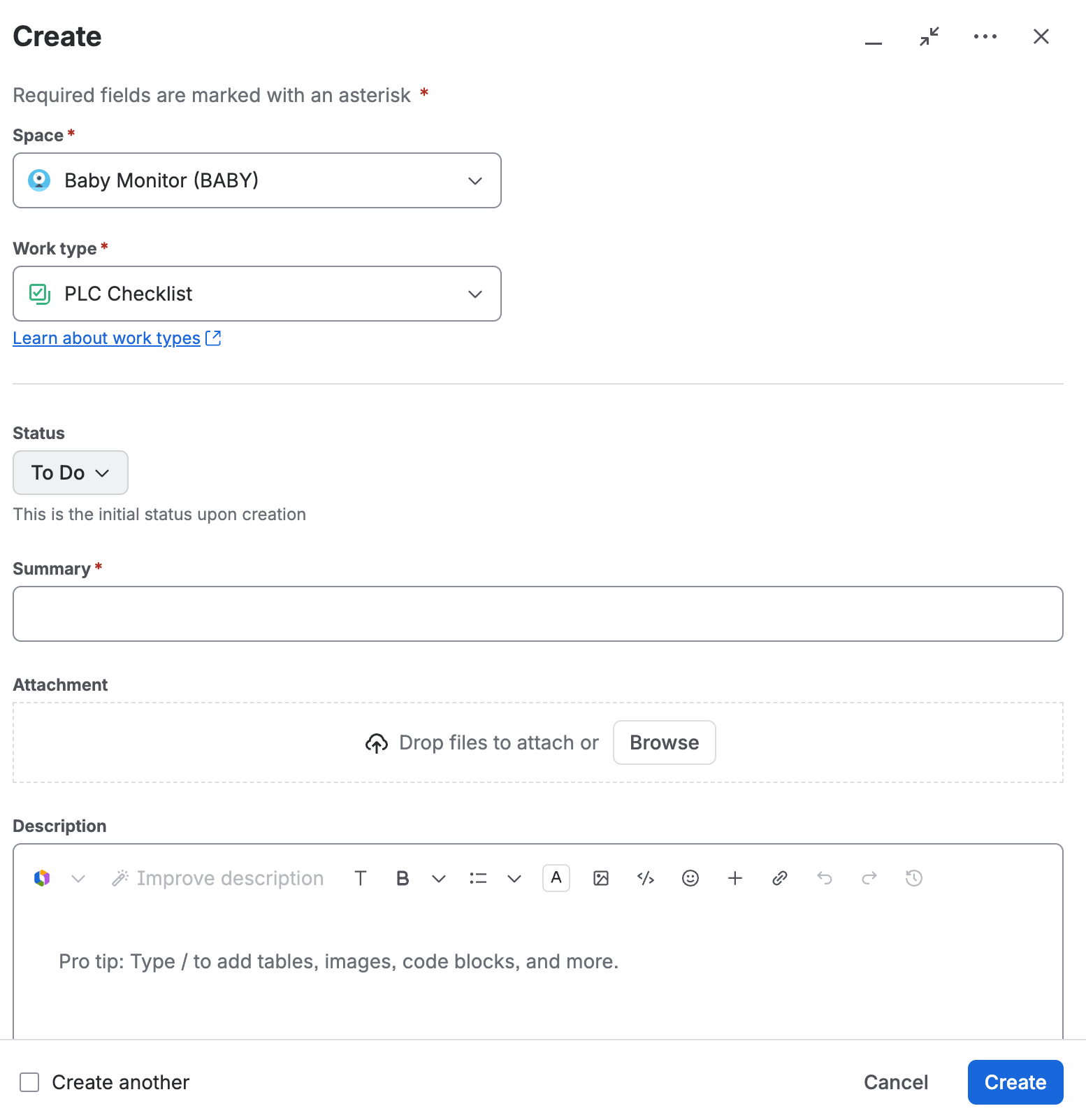
The create dialog with the work type set to PLC Checklist and the status showing To Do, labelled as the initial status upon creation. - Add the checklist items, as below.
Add checklist items
- From the checklist, use the checklist items link to create a new item, or create a checklist item from the product space.Creating it from the checklist links the two automatically. Creating it from the space means you have to link it yourself.
- Write the question and its context into the Description, so it can be answered by someone who was not there when it was written.
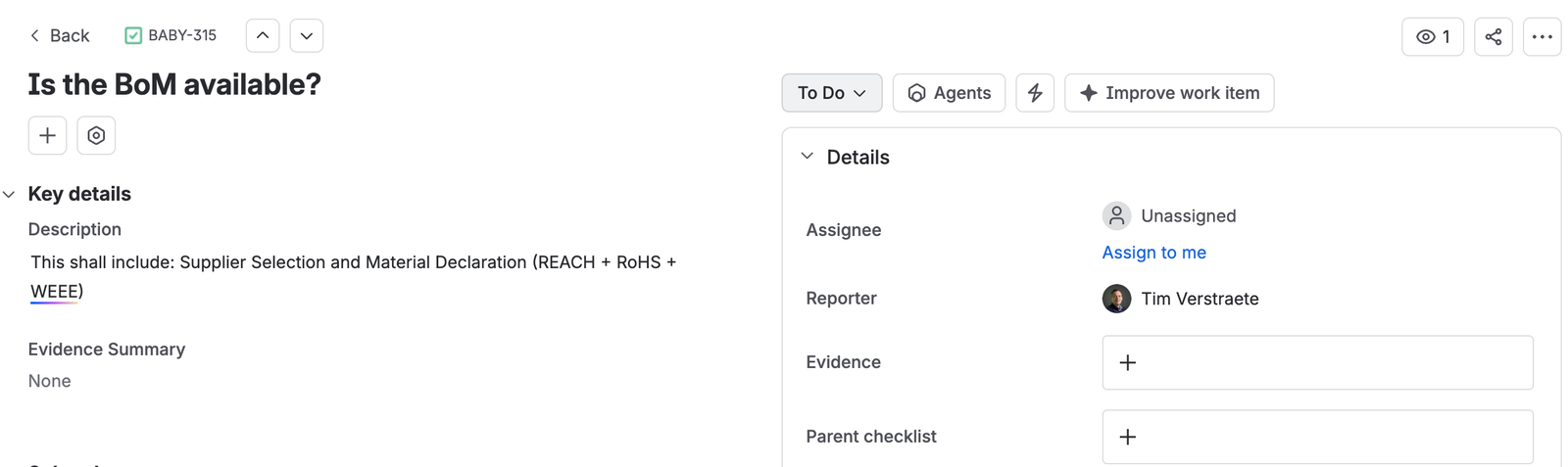
A checklist item asking whether the bill of materials is available, its description spelling out that it must include supplier selection and material declarations, with empty Evidence summary, Evidence, and Parent checklist fields.
Answer a checklist item
- Open the checklist and find the item to answer, then move it to in progress.
- In Evidence, select the document version in Document Control that answers the question.A version, not just a document. The gate records what was true at the time, and a floating reference does not.
- Summarize what that document says in Evidence summary, so a reviewer can judge the answer without opening it.
- Where the question does not apply, move the item to Won’t do and use the Evidence summary to say why. Link supporting evidence where you have it.
- Once answered, move the item to review and assign it to whoever is reviewing.
- The reviewer sets the status according to what they find.
A question ruled not applicable still needs its justification written down. An unanswered item and a deliberately skipped one look identical in the record otherwise, and only one of them is defensible.
Hold the phase gate review
Item-by-item review is preparation. The formal review is the phase gate meeting, and its approval is what actually moves the product.
- In Confluence, open the Draft Documents space and create a document of type Product Life Cycle Phase Review for the product. See Create a document or template.
- Complete it, following the instructions written into the template.
- Hold the phase gate meeting, and record the content, the actions, and the material in the report.
- Take the document through approval in Document Control.Every phase gate reviewer has to approve the product’s status change regardless, so having them all approve the document too is good practice rather than a requirement.
- Link the approved document to the checklist, so the meeting notes can be found from the product and from the checklist.
When a phase is complete
- The product status matches the maturity of its data, as the checklists show it.
- The checklists are up to date and linked to the product.
- Every checklist item is answered or justified, with evidence from Document Control.
- The phase gate review is documented, approved, and linked back to the checklist.