
Build a bill of materials
A bill of materials is the structured list of everything that makes up one product configuration: parts, components, materials, sub-assemblies, and the documentation that goes with them. It is the record almost every downstream process reads, which is why it is versioned rather than edited.
One product, several bills of materials
A product usually needs more than one. Splitting them by what they describe keeps a revision to one of them from disturbing the others. A typical product carries three: one for the product itself, one for its accessories, and one for its documentation. Variants and a software bill of materials are the other common reasons to add another.
Create a bill of materials
- In the Jira sidebar, open Apps and select Product Data, then go to the Products tab.
- Open the product and go to its Linked Items tab.
- Create a bill of materials there, and click Create.
- Open the new bill of materials, from the product or from the BOM tab, and fill in its Description so it is obvious what this one covers.Write the description as if for someone choosing between three bills of materials on the same product, because that is what they will be doing.
Fill it with content
A bill of materials holds nothing directly. Its content lives on a part change, which is the version of it that change control approves. Create that part change first, then add parts, components, files, or other products to it. See Version a BOM or part with a part change and Manage parts.
Activate it
A bill of materials starts in Draft and stays there until something under it has been approved.
- Confirm at least one part change beneath the bill of materials has been Released through change control.
- Move the bill of materials to Active.
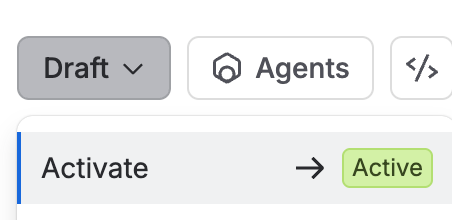
The status dropdown on a bill of materials in Draft, offering a single Activate transition to Active.
A bill of materials only moves from Draft to Active once a part change under it has been approved by an engineering change. Activating one with nothing released beneath it publishes a structure that change control has never seen.
It goes the other way too. When every part change under a bill of materials has been obsoleted through change control, the bill of materials becomes Inactive on its own. There is no approved version left, so there is nothing to build from.