
Guide
Review and approve a document
When you are asked to approve a document, you review the changes and confirm your decision with a one-time password sent to your email.
- Open the document from the review request email, or open the document table and click Pending my approval.
- Click the status at the top of the document to start the approval.
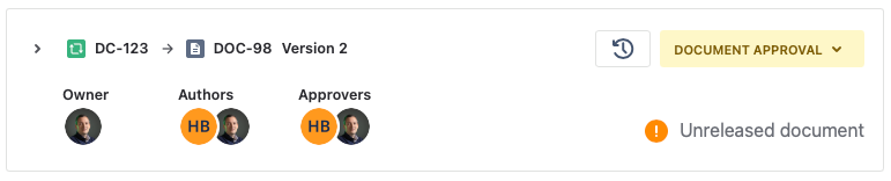
A document in Document Approval: the status, the owner, authors, and approvers, and a banner marking it as unreleased. - To see what changed, open the document history (the history icon), then open the Diff for the versions you want to compare.The diff is a red-line view: additions and deletions are marked inline. The history also lists the reason recorded for each version, so you can see why a change was made as well as what it was.
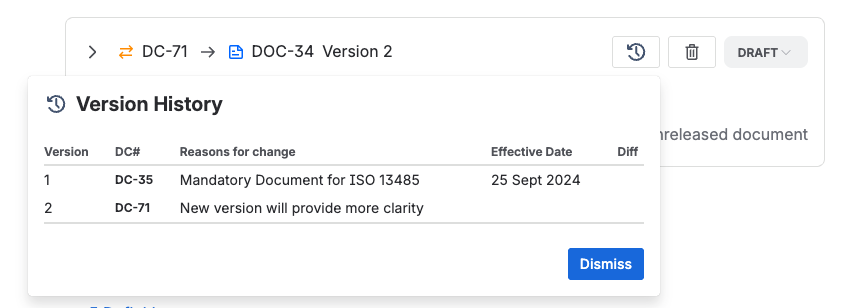
The version history: one row per version with its change ID, reason for change, effective date, and a diff link. - Click the approval, then Approve or Reject, adding a comment where it helps.Say why in the comment when you reject. A rejected document is not released, and the authors work from what you wrote.
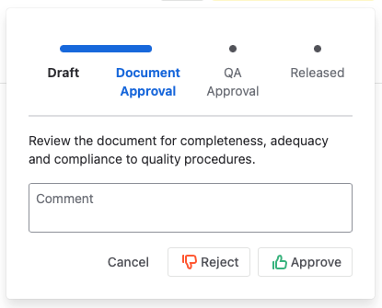
The approval dialog, showing the four lifecycle gates, a comment field, and the Reject and Approve buttons. - Enter the passcode sent to your email, then click Sign.The passcode is the one-time password that ties the signature to you. Your decision is only recorded once you enter it.
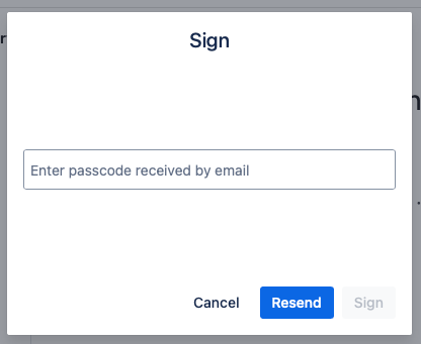
The Sign dialog, with the passcode field and a Resend option. 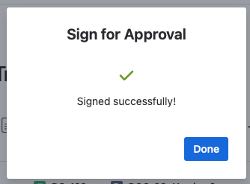
The confirmation shown once the passcode is accepted. - If you have already approved, the document shows every approver and their decision instead.
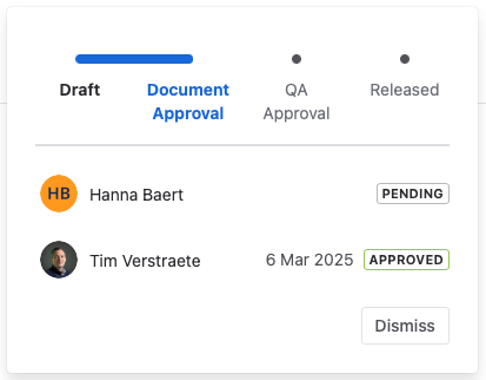
Each approver listed with their decision and the date they signed, some approved and some still pending. - Once everyone has approved, including QA, the document is released and moves to the Released space.
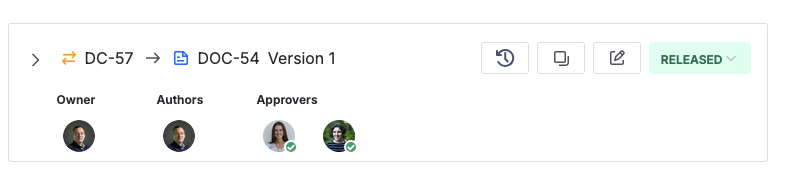
The released document, with a green check against each approver who signed.