
Guide
View document status
Each space opens on a document table listing every document in it with its version and current status. It is the starting point for most tasks in Document Control, so it is worth knowing what else it gives you.
- Open the document table. Load the main page of the Draft space for documents still being worked on, or of the Released space for approved ones. From anywhere else in Confluence, open the overview from the apps menu.
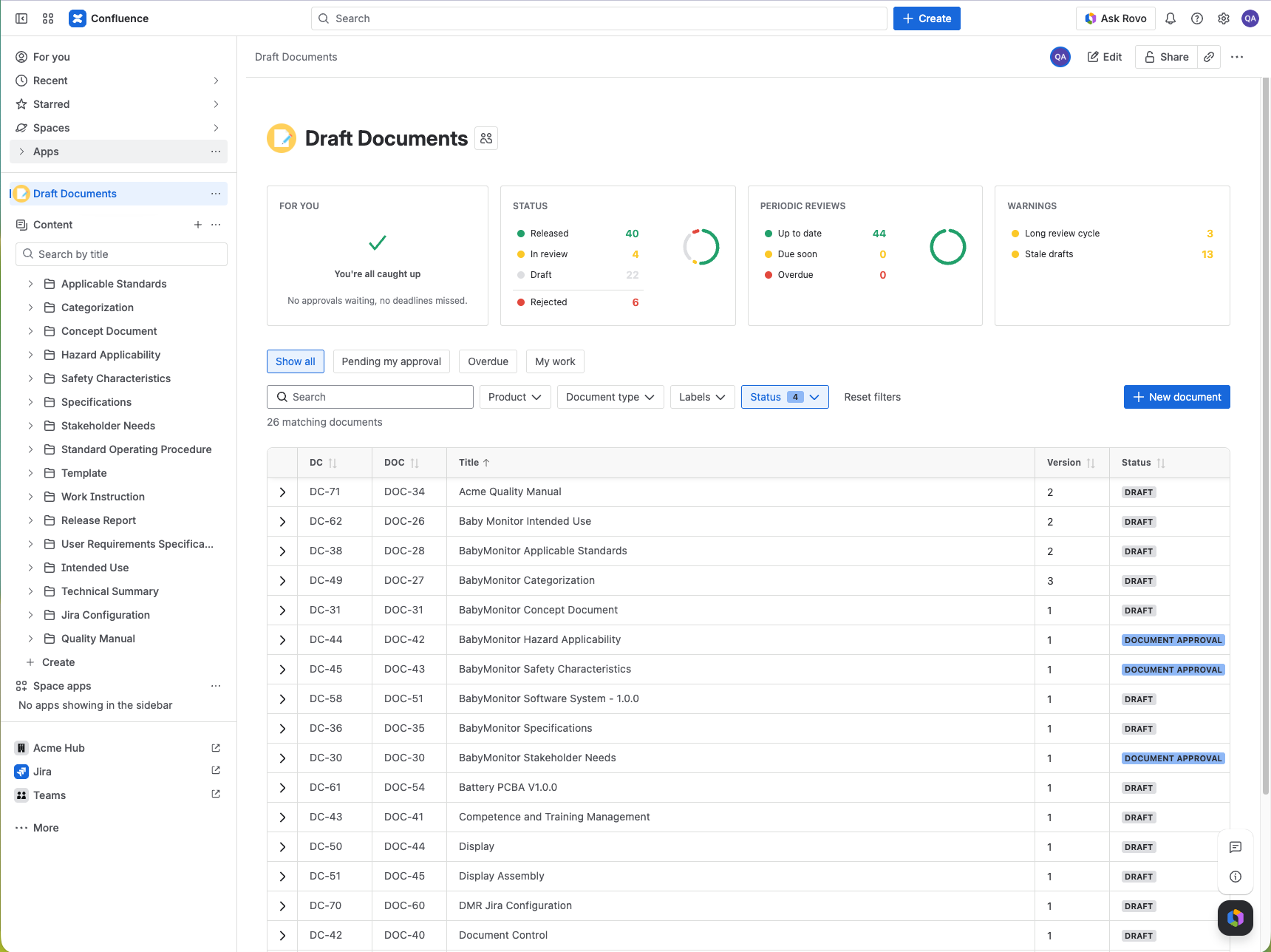
The Draft Documents table: four summary panels across the top, then the filter row, then one row per document with its DC and DOC keys, version, and status. 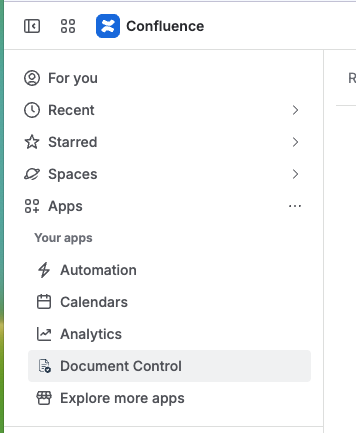
The same overview, opened from the Confluence apps menu. - Read the Status column. Each row carries one colored lozenge for the document’s current state.See Key concepts for what each status means.
- Narrow the list with the filters above the table: Product, Document type, Labels, and Status. Reset filters clears them all again.
- Or use the quick filter tabs above the search box. Pending my approval leaves only the documents waiting on your signature, My work only the ones you own or authored, and Show all puts the full list back.
What the summary panels tell you
For you
Whether any approval or deadline is waiting on you personally.
Status
How many documents sit in each state: released, in review, draft, and rejected.
Periodic reviews
How many documents are up to date, due soon, or already overdue against their next review date.
Warnings
Documents with a long review cycle, and drafts that have gone stale.
Review is periodic, not only change-driven
Every released document carries a next review date, and the Periodic reviews panel counts down to it. A document can be due for review without anyone having proposed a change to it.