
Manage stakeholder needs
A stakeholder need is the first item you create in Design Control. It records what a named stakeholder needs from the product, in their own words, before anyone decides how the product will deliver it. Every requirement, specification, and test in the chain traces back to a need, so how well you write this one shapes everything that follows.
What a good stakeholder need looks like
A stakeholder need answers three questions, and each one has its own field. The Stakeholder field is who, the role that directly experiences the need. The Summary and Description are what: the outcome or capability they need, written in their language rather than the system’s. The Justification is why: what makes that outcome matter clinically, operationally, or commercially. Keeping the three apart is what makes a need reviewable.
The seven rules under Key concepts apply to a stakeholder need as they do to every item. The rest of this section is what they mean here.
| Field | What goes in it |
|---|---|
| Summary | The outcome or capability, in plain language. Leave the stakeholder role out, it already has its own field. |
| Description | The need elaborated in the user’s language: the full "so that" clause, a use case scenario, a user journey diagram, a screenshot of the workflow that is causing the problem today, or a table of the scenarios affected. Mandatory on an approved need. |
| Stakeholder | The most specific role that directly experiences the need. Prefer Nurse over Healthcare Professional when the need is nursing specific. |
| Justification | Why the need matters, in clinical, operational, or business terms. Must answer a different question than the Description, not restate it. |
| Acceptance criteria | What fulfilment looks like to the stakeholder: what they would see, achieve, or be able to do. Specific enough to be the basis of a validation test. |
| Source | Where the need came from: user research, post-market feedback, expert review, an internal workshop, or similar. |
| Validation method | How the need will be validated, for example a summative or clinical evaluation, a pilot study, a bench test, an inspection, or a survey. |
| Validation evidence | The validation evidence document, selected from Document Control. |
| Derived requirement | The requirement or requirements elaborated from this need. Create them here if they do not exist yet. |
| Linked test | The validation test that proves the need was met. |
| Priority | The priority band: Must have, Should have, Could have, Postponed, or Undefined, the default before it is set. |
| Product | The product or products the need applies to. |
| Assignee | The person responsible for creating the need, or for reviewing and approving it. |
The same need, written two ways.
| Field | Good | Poor |
|---|---|---|
| Summary | Record patient vitals at the bedside | As a nurse, I want to record patient vitals |
| Stakeholder | Nurse | Healthcare Professional |
| Description | As a nurse, I want to record the patient’s vital signs at the bedside so that I can define the care needed before transport. | The system shall display a vital signs input form. |
| Justification | Time-critical triage decisions depend on accurate vitals at the point of care. Manual transcription delays increase the risk of misdiagnosis during transport. | Required feature. |
| Acceptance criteria | The nurse can enter heart rate, SpO₂, blood pressure, and respiratory rate without leaving the patient’s side. The data is immediately visible to the care team. | The form is displayed. |
Describe the experience, not the system behaviour. A stakeholder need is not a requirement, so never say how the system will solve it and never write "the system shall" on one. Keep each item to one need, and never combine two distinct needs into one. Do not repeat the stakeholder role in the Summary, it already has its own field. The Justification must answer a different question than the Description, so it can never be a copy, a paraphrase, or "N/A". Acceptance criteria have to be observable from the stakeholder’s point of view and directly testable, not a paraphrase of the Description.
The statuses a stakeholder need moves through
Create a stakeholder need
- In Jira, open your space and select the Design Control tab to reach the space page.
- On the Stakeholder Needs tab, click + New Stakeholder Need.
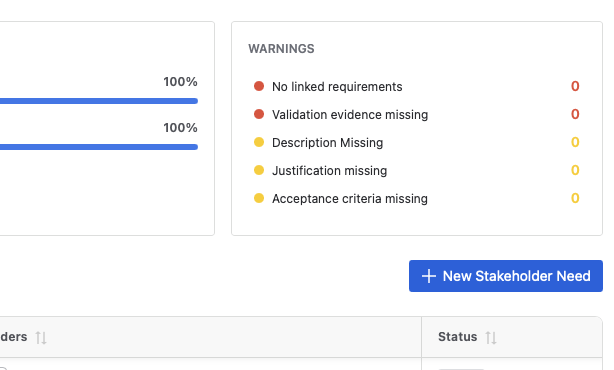
The top of the Stakeholder Needs tab, with the Warnings card counting missing content and the New Stakeholder Need button above the table. - Fill in the Summary, Description, and Stakeholder, then click Create.
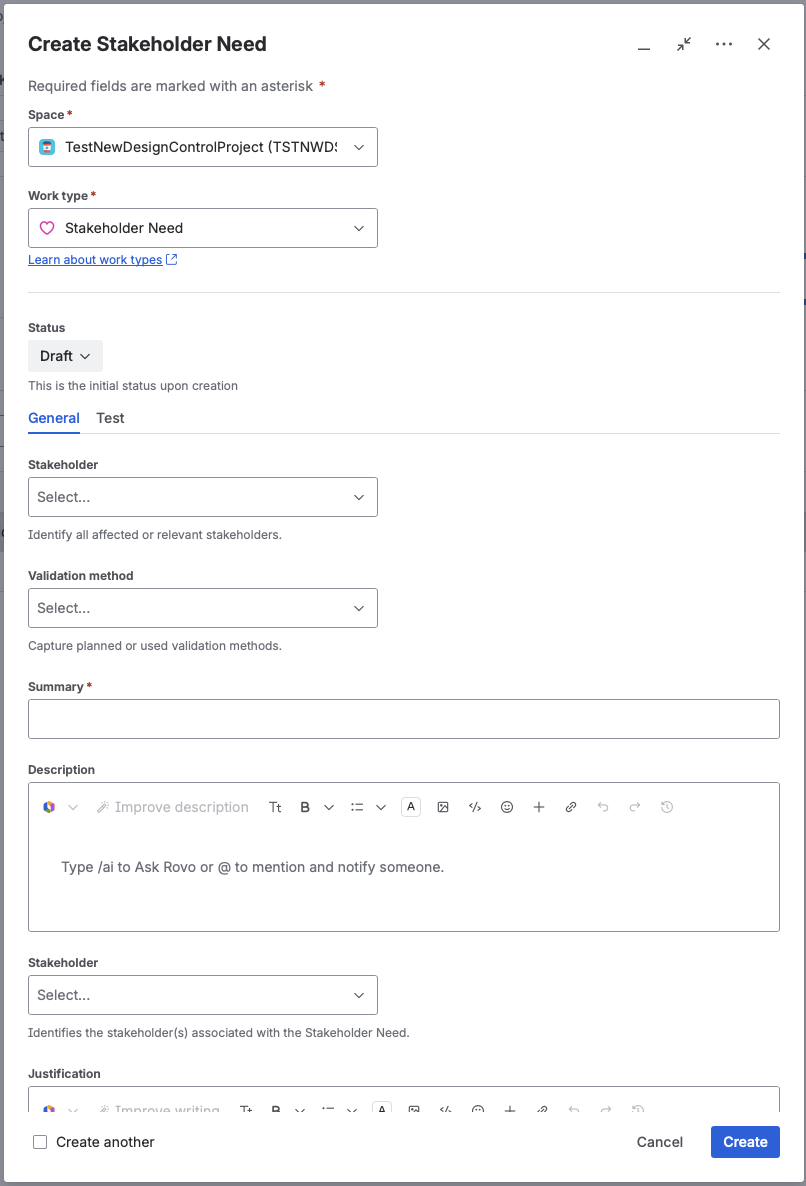
The create dialog for a Stakeholder Need, with the Stakeholder, Validation method, Summary, and Description fields. - Open the new work item and complete the remaining fields and tabs with everything you already know.
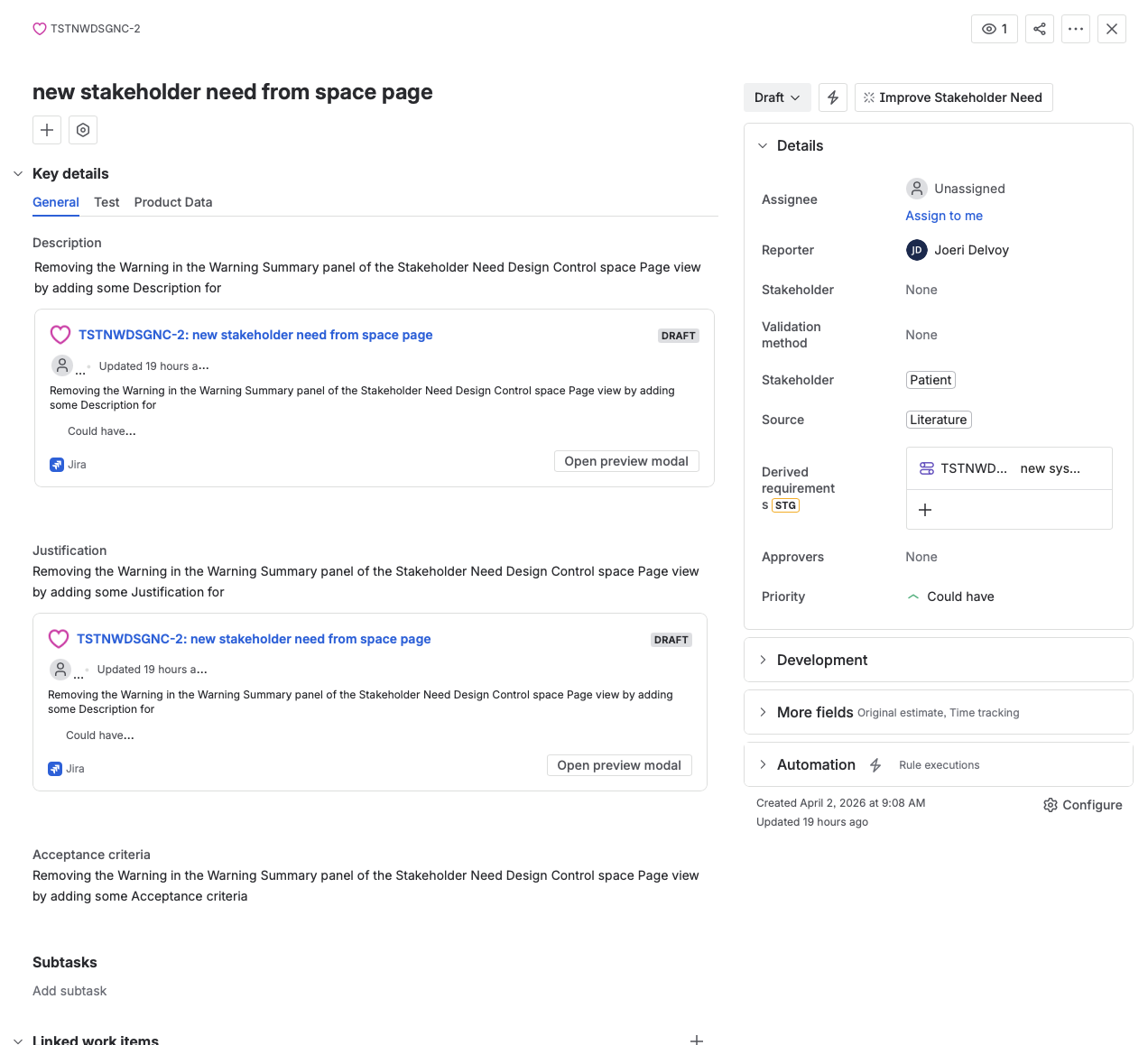
The Stakeholder Need work item, with Description and Justification on the left and Assignee, Stakeholder, Source, Derived requirements, Approvers, and Priority on the details panel at right.
Review and approve a stakeholder need
- Find the need in the Stakeholder Needs table and expand its details panel to check what is already filled in.
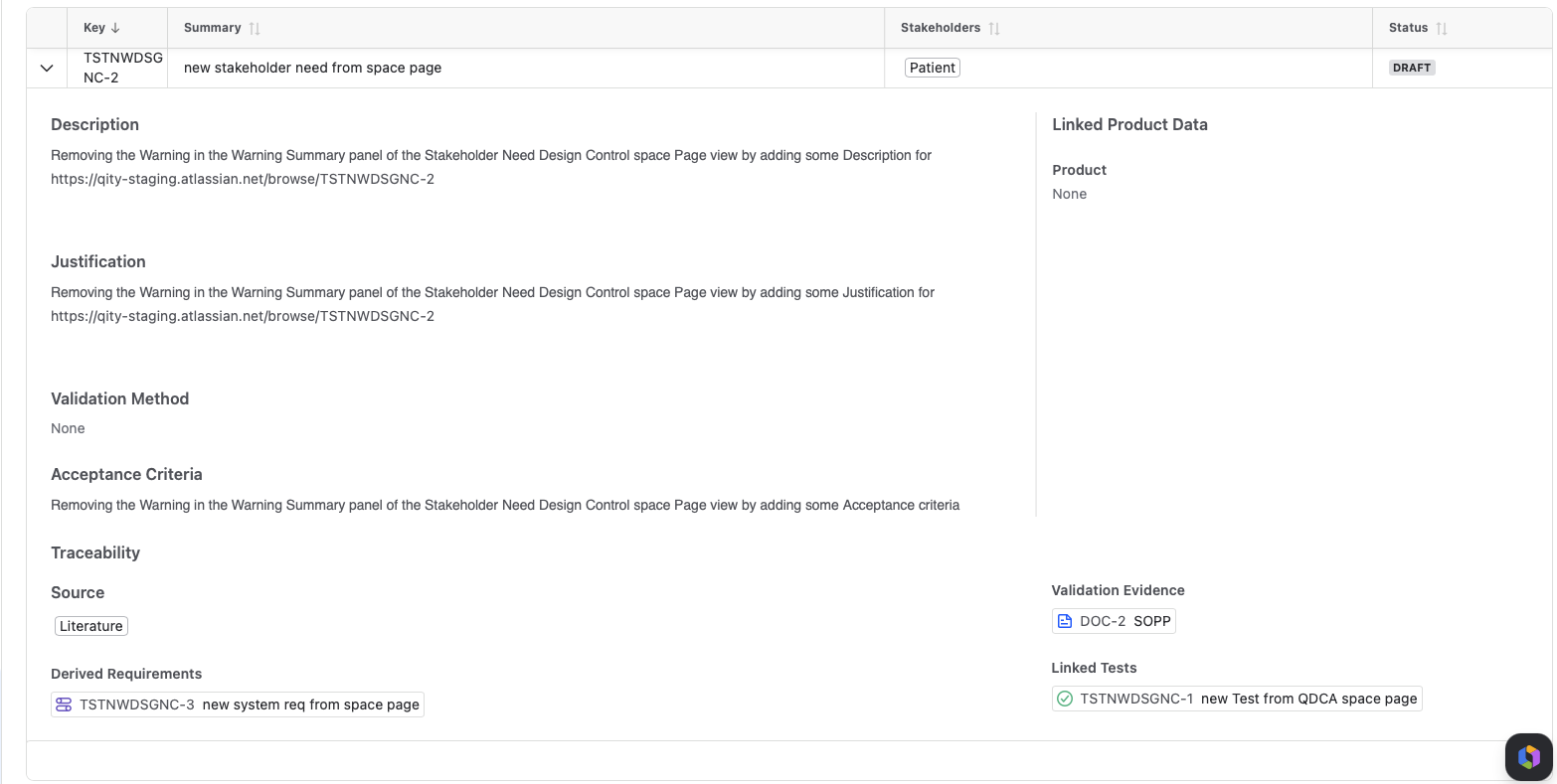
The details panel expanded under a stakeholder need row, showing its Description, Justification, Acceptance criteria, and Traceability links to a derived requirement, validation evidence, and a linked test. - If anything is missing, click the key to open the work item and edit it. At minimum, fill in the Summary, Description, Justification, Acceptance criteria, Stakeholder, and Product before you send it for review.
- Set the Assignee to the person who will review the need, then click In review from the status dropdown.
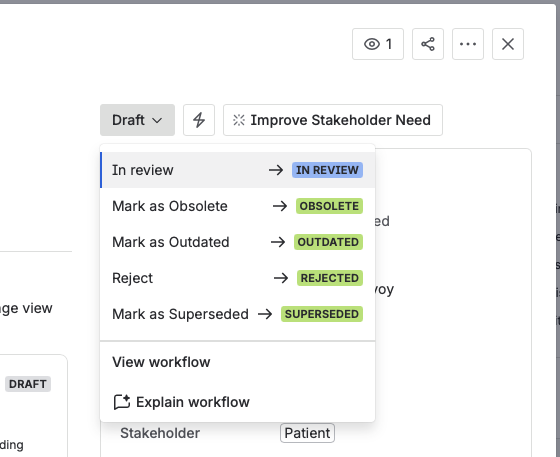
The status dropdown from Draft, with In review highlighted alongside Mark as Obsolete, Mark as Outdated, Reject, and Mark as Superseded. - As the reviewer, choose Approve or Reject, adding a comment where the decision needs an explanation.Where your configuration requires a signed approval, Qity emails you a passcode, and the status only moves once you enter it in the Signature dialog.
Mark a stakeholder need as covered
- Open the need and check its Traceability fields: at least one derived requirement, and at least one linked test or validation evidence.
- Click Covered from the status dropdown.
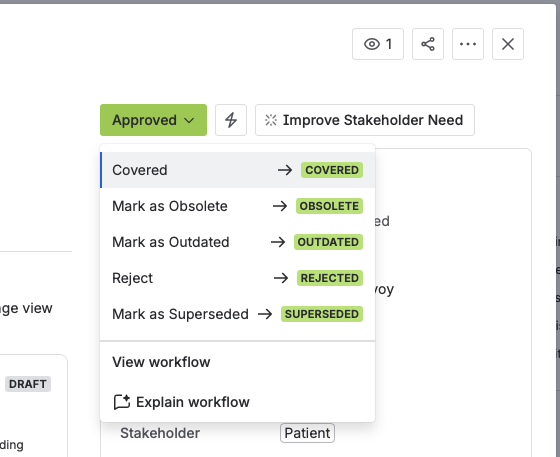
The status dropdown from Approved, with Covered highlighted alongside Mark as Obsolete, Mark as Outdated, Reject, and Mark as Superseded.
A need is only Covered when it has both a derived requirement and a linked test or validation evidence. Coverage, not approval, is what the design control record is judged on.
Update an approved stakeholder need
An approved or covered stakeholder need cannot be edited in place, so you move it to Outdated before you can change anything.
- Open the need and click Mark as Outdated from the status dropdown.
- Assign the need to whoever will update it.
- Revise the content, then move the status back to In review and take it through approval again.
Retire or replace a stakeholder need
- To retire a need that no longer applies, open it and click Mark as Obsolete from the status dropdown.
- To replace a need, open the ... menu and choose Clone.
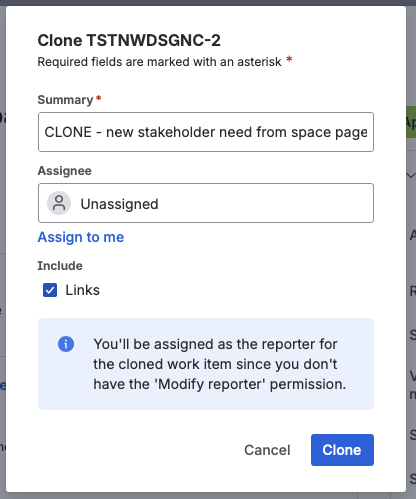
The Clone dialog, with Include: Links checked and the Summary still carrying the CLONE - prefix. - Keep Include: Links checked so the existing links carry over, then remove the
CLONE -prefix from the Summary. - Click Mark as Superseded on the old need, and take the new need through review as usual.
Export stakeholder needs to a controlled document
- In Confluence, open the Draft Documents space and create a new document from the Stakeholder Needs template. See Create a document or template for the wizard.
- Open the document and set the Stakeholder Needs macro’s Products, Stakeholders, and Fields, then click Save to pull the content from Jira.
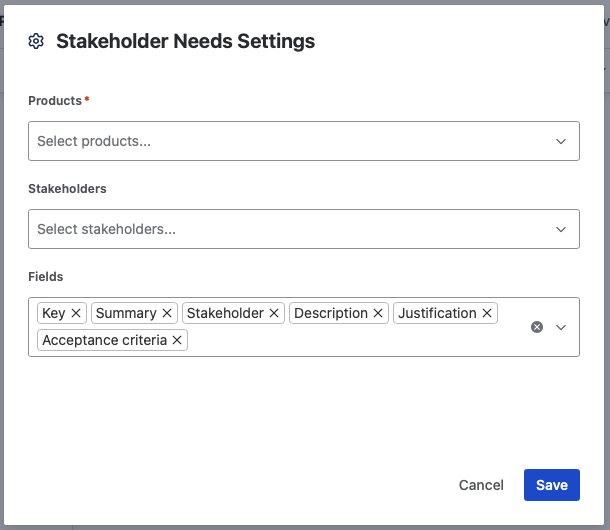
The Stakeholder Needs macro settings, with Products, Stakeholders, and the Fields chosen for import. - If the macro is not already on the page, insert it by typing
/stakeholder need.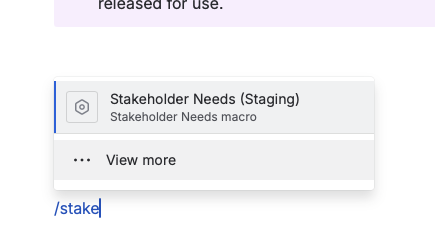
The autocomplete menu after typing /stake, suggesting the Stakeholder Needs macro. - To change what was imported, click the macro in edit mode and reopen its settings.
Fill in the rest of the document, then send it through the same review as any other controlled document. See Document Control overview.