
Set up Quality Events
A little setup is required before Quality Events can route approvals and flag overdue records on its own. Most of it is one-time configuration, done once per site or space.
Open Quality Events
Deviations, nonconformities, CAPA, and concessions each live in their own Jira space (DEV, NC, CAPA, CONC). Inside a space, Quality Events is a space tab with a sub-tab for each record type and a Tasks sub-tab.
- In the Jira side menu, click Apps.
- Click Quality Events to see records across all four spaces.
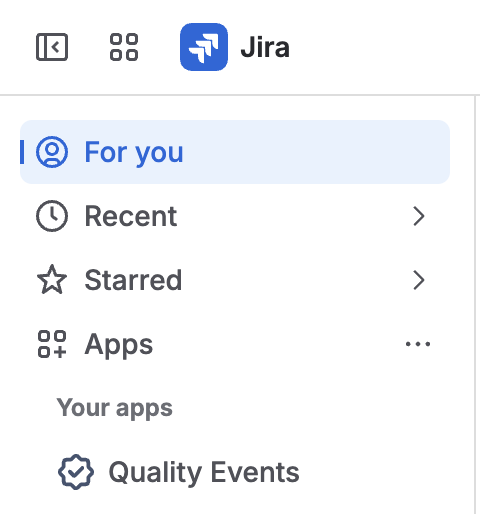
The Jira Apps menu open from the side menu, with Quality Events listed under Your apps.
Any record is also reachable from a space’s All work tab, filtered on the work type.
Assign the space roles
Assign the three Quality Events roles in each space’s access settings.
- Open the space, then Space settings, then People.
- Find the user under Current users, or click Add people to add them.
- Set their Role to the one they need.
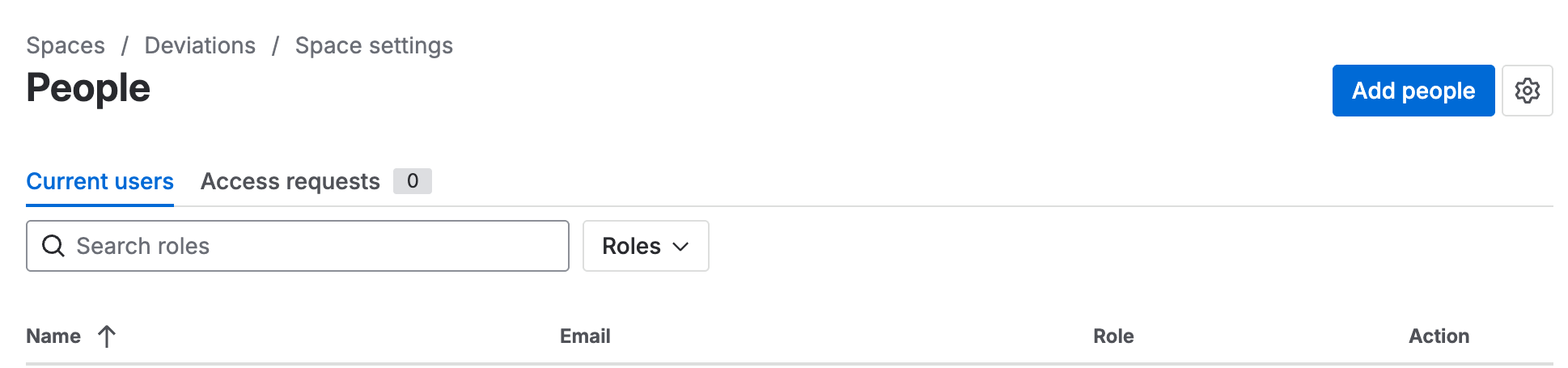
The People page in a space’s settings, on the Current users tab, with Add people at the top right and a Role column for each user.
| Role | Who it’s for |
|---|---|
| Quality Events Administrator | Administers and maintains Quality Events for the space. |
| Quality Events Manager | Runs the quality event meetings and manages the activities. |
| Quality Engineer | Any user of the app. |
Only a Quality Events Administrator can cancel a record or a task, and only a Quality Events Administrator can revise an approved concession back to Draft. No other role can do either, from any status. Assign this role before you need it.
Configure approvals
Configure approval rules once per space. Each rule maps a workflow status to the people who need to sign off on it.
- Open the space’s Quality Events settings.
- Turn on Enable approval for this project.
- Click + New approval to add a rule.
- Set the rule’s Workflow, Workflow status, Approve transition, Reject transition, and Approvers field.
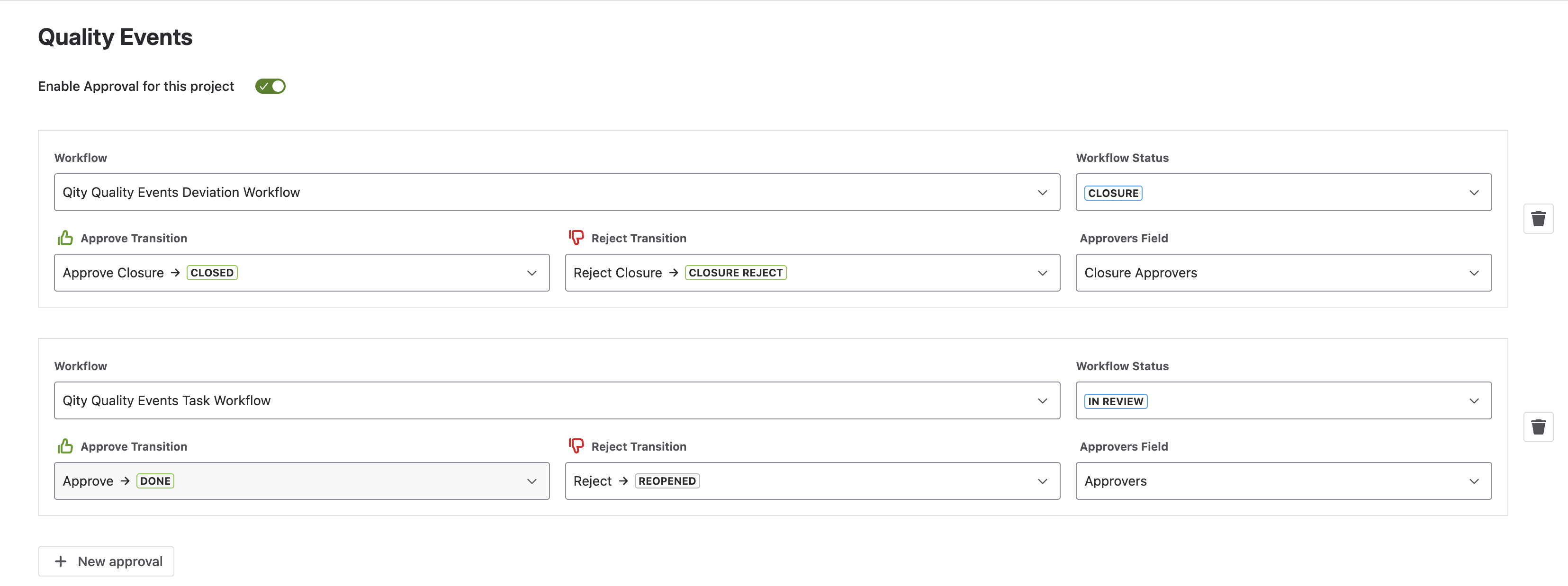
Two approval rules for a space: one on the Deviation workflow’s Closure status, one on the Task workflow’s In review status, each with an approve transition, a reject transition, and an approvers field.
| Field | What it sets |
|---|---|
| Workflow | The workflow the rule applies to, for example Qity Quality Events Deviation Workflow. |
| Workflow status | The status the approval gates, for example Closure or In review. |
| Approve transition | The transition taken when everyone approves, for example Approve closure → Closed. |
| Reject transition | The transition taken when anyone rejects, for example Reject closure → Closure reject. |
| Approvers field | The field holding the people who must sign, for example Closure approvers. |
This is what makes the Approvers field on a record actually route an approval. If the rule for a status is missing, nobody is invited, and the record just sits there. A CAPA needs two rules, one for its plan review and one for its closure.
Configure overdue tracking
Overdue rules live in the same settings and follow the same pattern: enable them for the space, then add one rule per status that should time out.
- In the space’s Quality Events settings, turn on Enable overdue for this project.
- Click + New overdue to add a rule.
- Set the rule’s Workflow, Workflow status, Overdue transition, Overdue period (in days), and Recipients field.
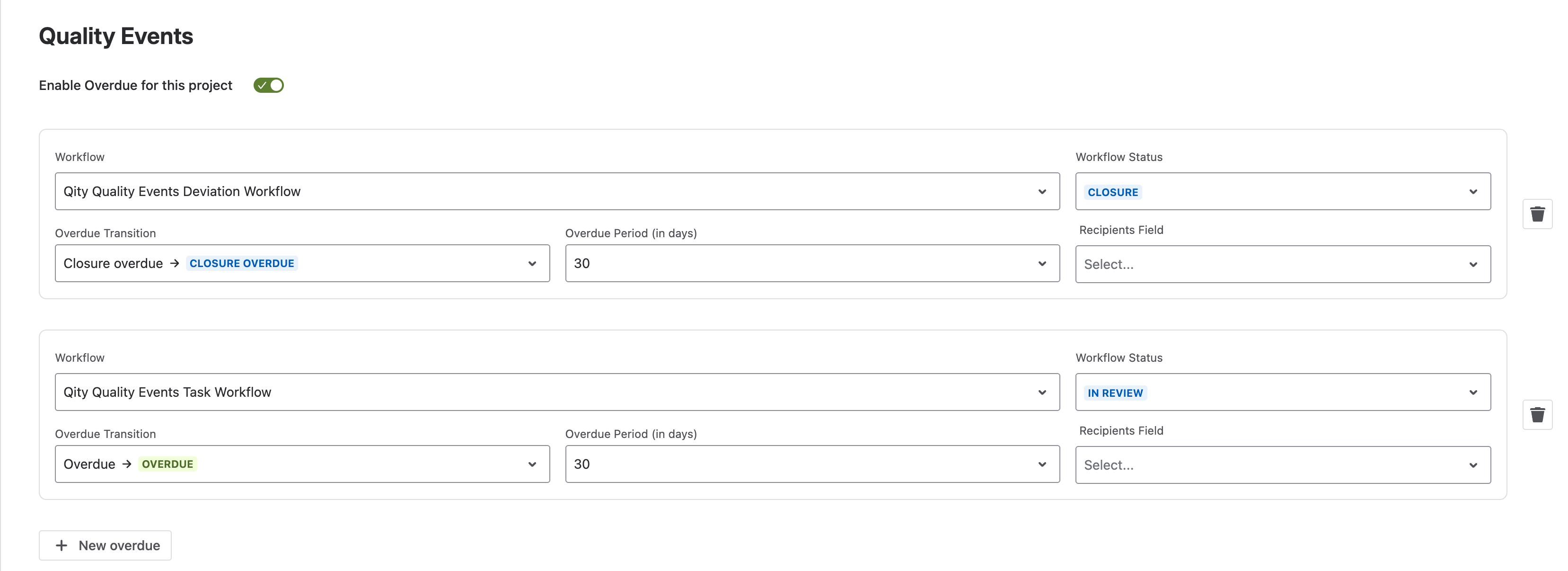
Two overdue rules for a space: one on the Deviation workflow’s Closure status, one on the Task workflow’s In review status, each set to a 30-day period with an overdue transition and a recipients field.
| Field | What it sets |
|---|---|
| Workflow | The workflow the rule applies to. |
| Workflow status | The status being timed. |
| Overdue transition | Where the record goes when the time runs out, for example Closure overdue → Closure overdue. |
| Overdue period (in days) | How long the record may sit in that status before the transition fires, for example 30. |
| Recipients field | Who is notified when it fires, for example the reporter. |
The transition fires on its own once the period runs out. The record’s owner fills in Overdue justification and clicks Justify & resume to put it back where it was. A CAPA can be timed at three points: its plan review, its effectiveness check, and its closure.
Approvals are signed with a one-time password sent by email, so every approver needs a working contact email on their Atlassian account. See Set up your account.