
Manage a concession
A concession is a documented authorization to use or release a product, component, or material that departs from its requirements, limited in scope and in time. It is the simplest of the Quality Events record types: no tasks, no disposition, and no effectiveness check, and the only one that carries a validity period. If Manage a nonconformity sent you here because its Use as is disposition called for one, this guide covers the concession itself from here.
The lifecycle is short. It runs Draft → In review → Approved, then either Withdrawn or Expired. Rejected, Approval overdue, and Canceled are the side statuses you can land in along the way.
Won’t Do.Won’t Do.Won’t Do.Won’t Do.Rejected, Canceled, Withdrawn, and Expired are all terminal, more terminal statuses than any other Quality Events record type has. None of them can be edited or transitioned again once you land there. Check where a transition leads before you click it.
New to Quality Events? See Key concepts for the vocabulary used across every guide.
Record a concession
- In the Concessions (CONC) space, open the Quality Events tab, then its Concessions sub-tab, and click + New Concession.You can reach every Quality Events space at once from the Jira side menu, under Apps, then Quality Events.
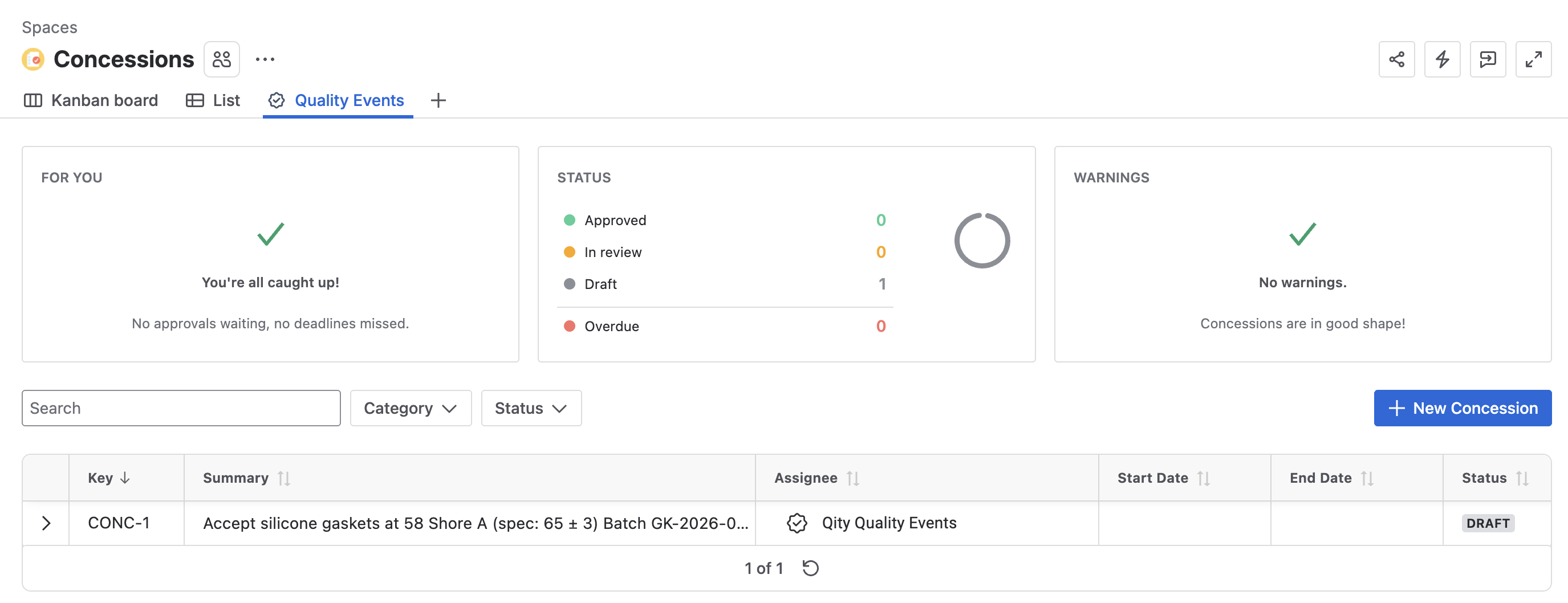
The Concessions view on the Quality Events tab, with panels for pending approvals, status counts, and warnings, plus search, filters, and the New Concession button above the concessions table. - The summary should say what is being accepted under concession, which specification it departs from, and which batch or lot is affected.
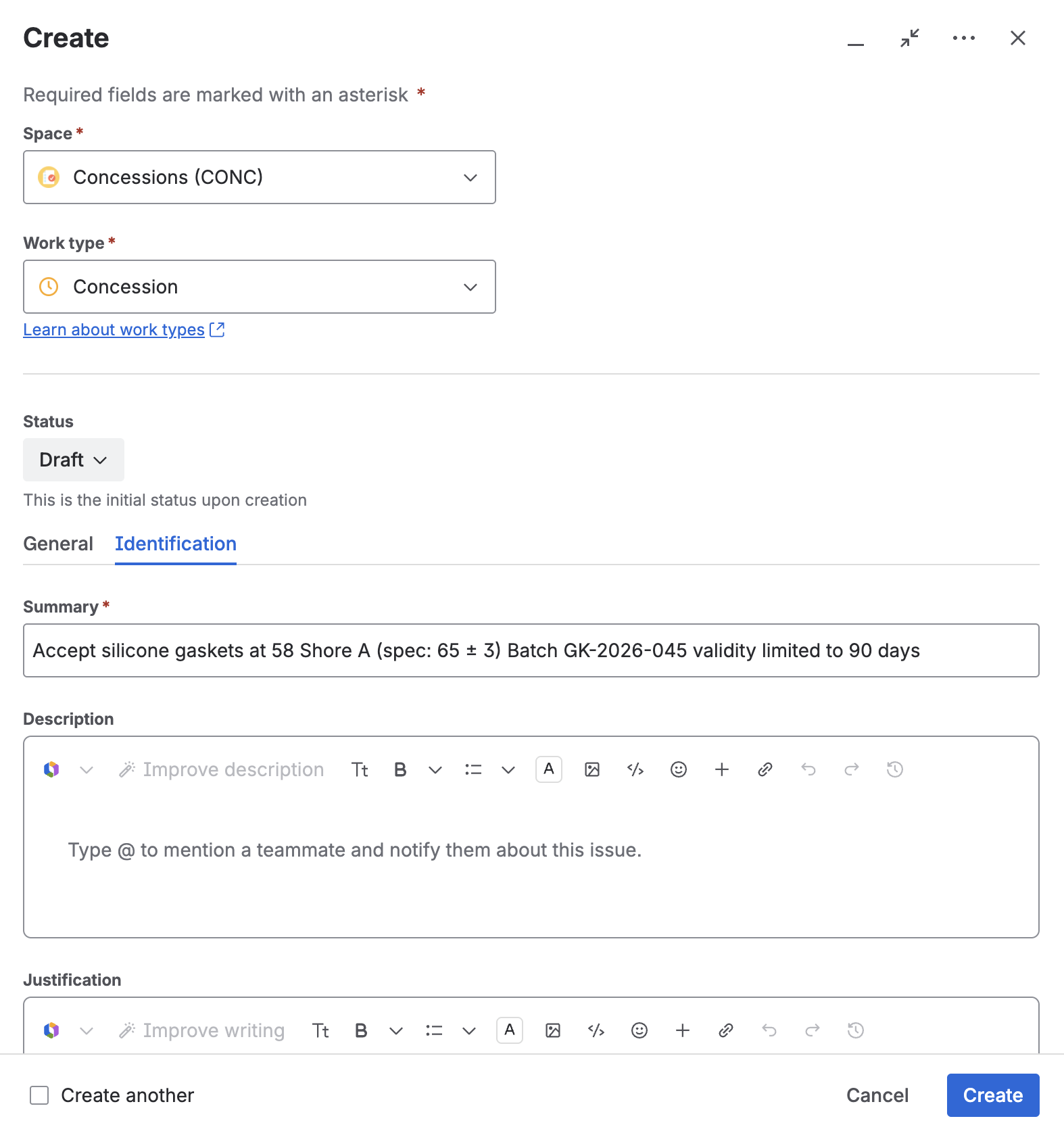
The create dialog for a concession, with the work type set and the summary entered. - The description should cover what is non-conforming, from which requirement, the measured value against the specified one, how many units are affected, why the concession is justified, and the time or quantity limit.
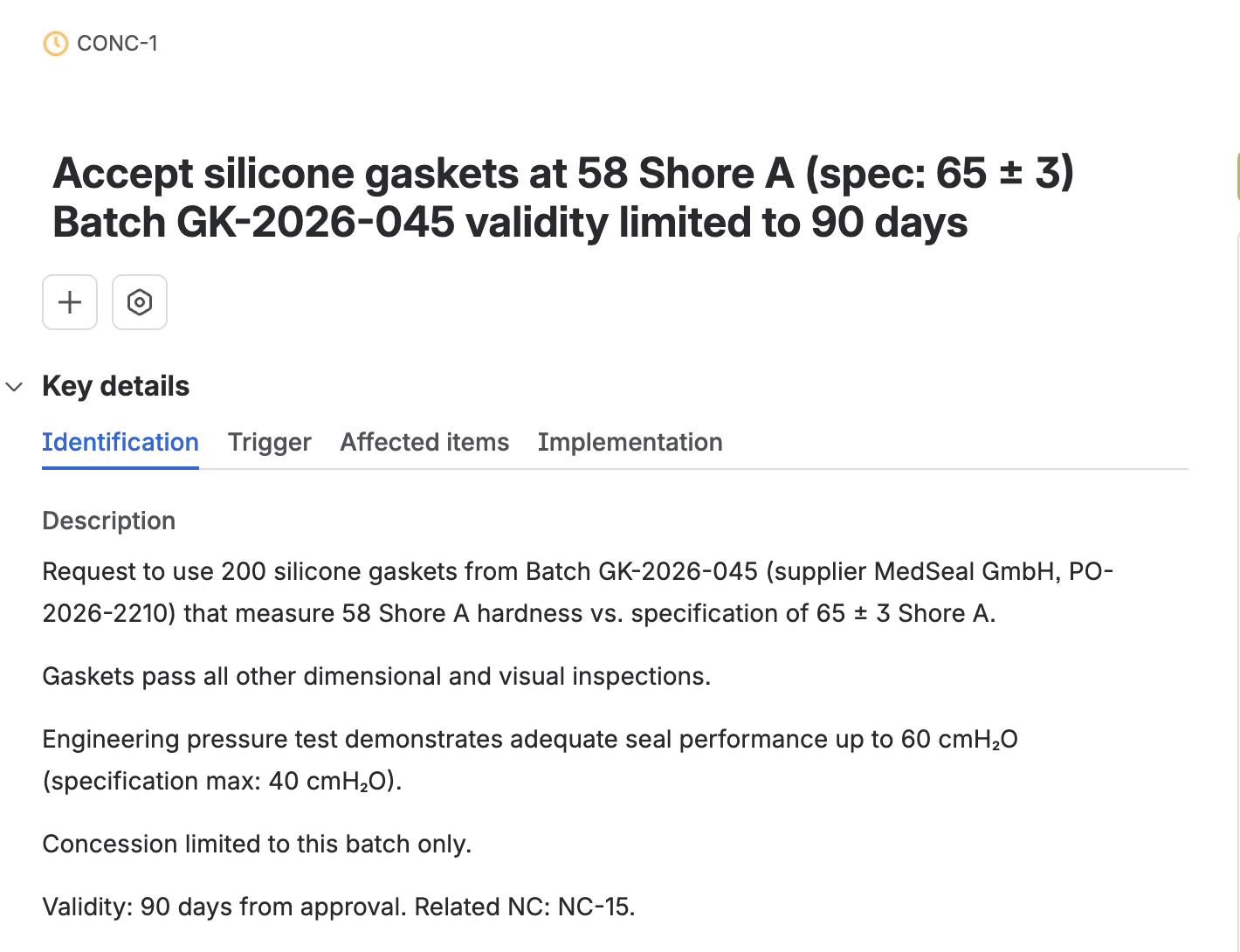
A concession’s description, spelling out the nonconformance, the measured and specified values, the affected quantity, and the validity limit. - Click Create. The concession opens in
Draft, with a key such asCONC-1.
Enter the details
- Open the concession from the Concessions view.You can also reach it from the space’s All work tab, filtered on the Concession work type.
- Set the priority to
Highest,High,Medium,Undefined,Low, orLowest.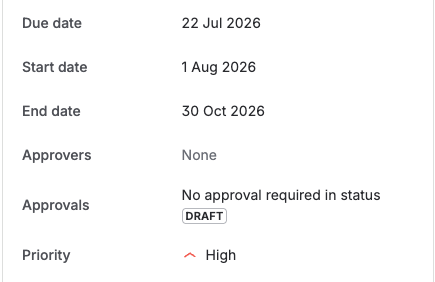
The due date, validity start and end dates, approvers, and approval status, with priority set to High. - Set the validity period, a start date when the concession becomes active and an end date when it expires.
- Enter the justification, fill in market surveillance if it applies, set the assignee, and add a due date, the target date for the approval to finish.
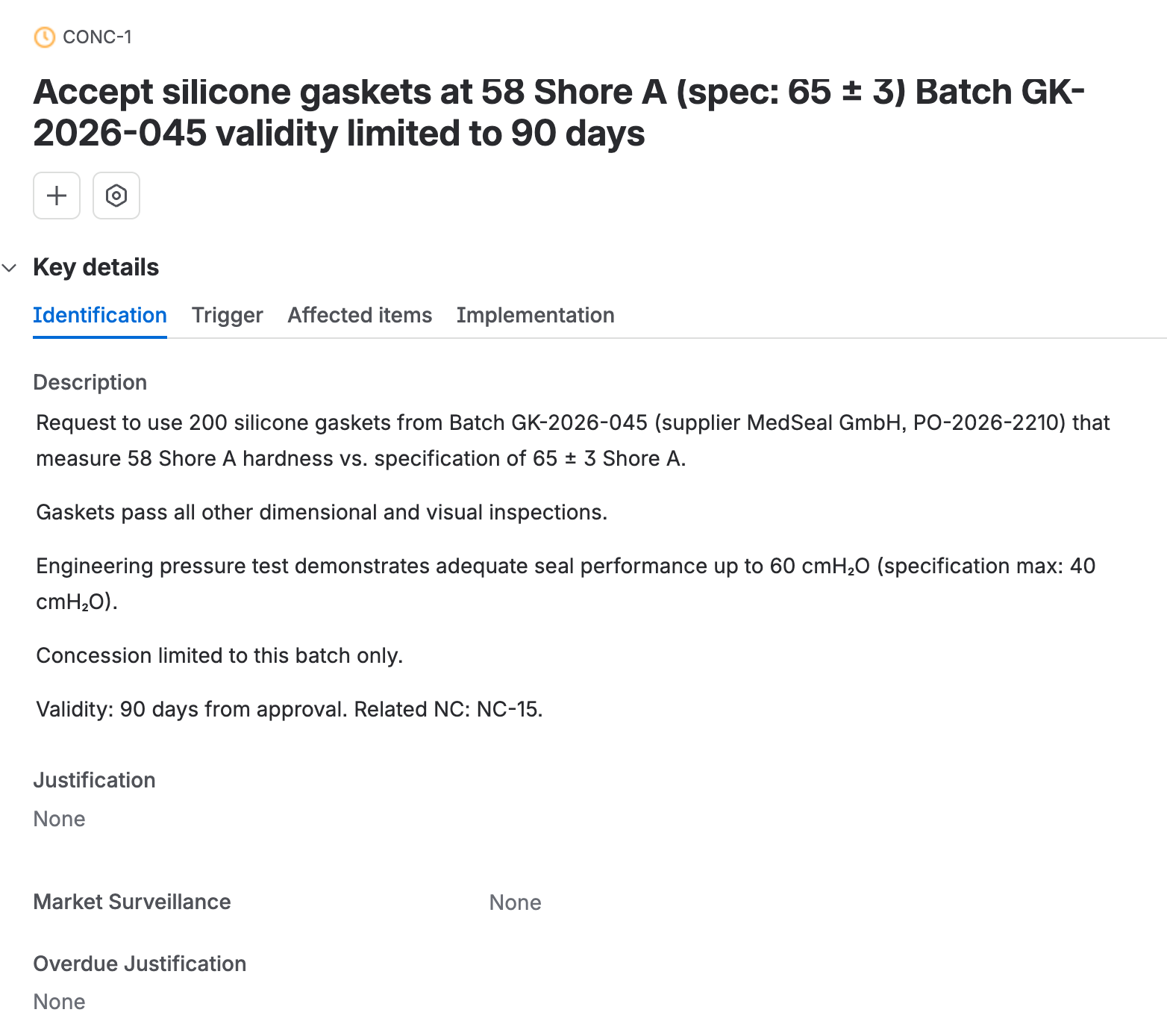
The justification and market surveillance fields, still empty, further down the identification tab. - On the Trigger tab, link the source event that triggered the concession: a linked nonconformity, deviation, or CAPA.
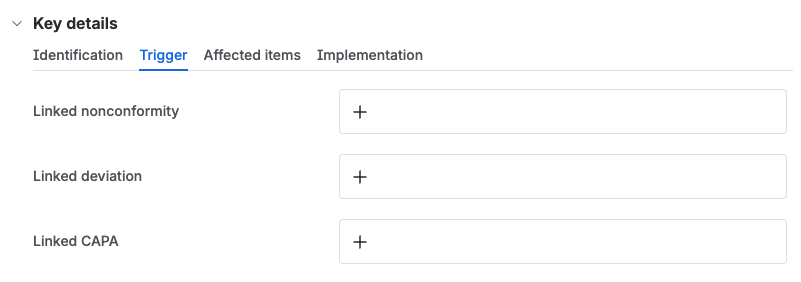
The trigger tab, with fields to link a nonconformity, a deviation, or a CAPA. - On the Affected items tab, identify what the concession covers: a batch, a serialized item, or an asset.
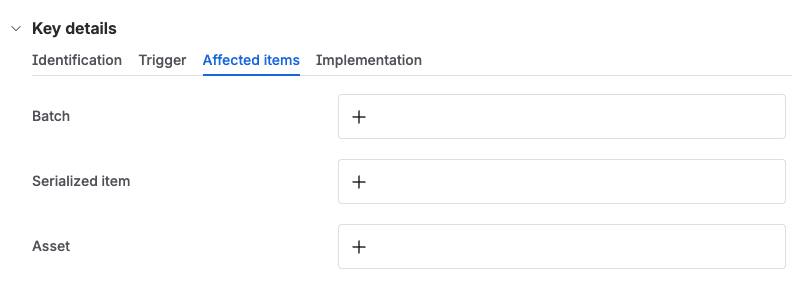
The affected items tab, with fields to link a batch, a serialized item, or an asset. - On the Implementation tab, link supporting material: affected documents and any related risks.Affected documents come from Document Control. Linked risks come from the Safety Risks app, not covered on this site yet.
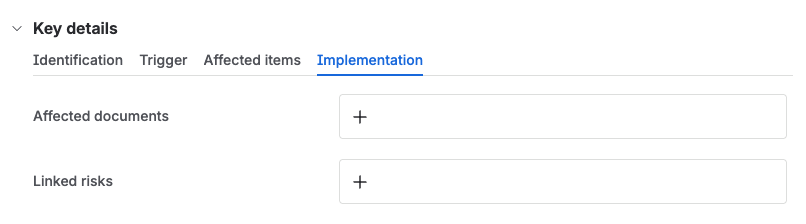
The implementation tab, with fields to link affected documents and any related risks. - Fill in the approvers field.If approvers is empty, nobody is invited when you start the review.
- Click Start Review to move the concession to
In review.The description field must be filled in first, or the transition will not go through.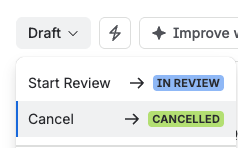
The status menu on a draft concession, with Start Review and Cancel as the available transitions.
Approve a concession
Each approval is signed with a one-time password sent by email. That is what makes it a signature, not just a click on Approve.
- Open the concession that is awaiting approval.
- Each approver acts individually, on the Approvals field. It carries an
Approval requiredlozenge, a Comment box, and Reject and Approve buttons. Add a comment if you need to, then click Reject or Approve.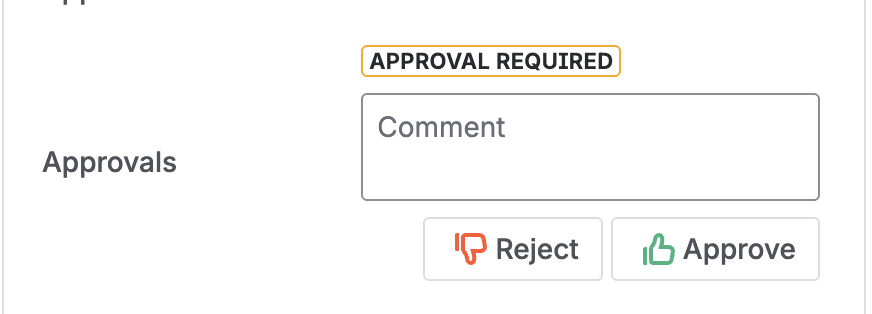
The Approvals field, carrying the Approval required lozenge, a comment box, and the Reject and Approve buttons. - Enter the one-time password sent to your email.
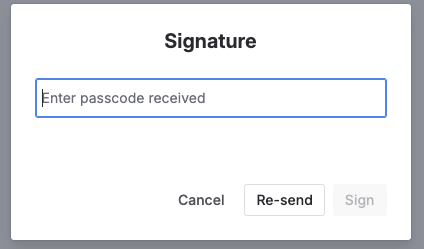
The signature dialog, prompting for the passcode sent by email. - Once the password is verified, your decision is recorded on the concession.
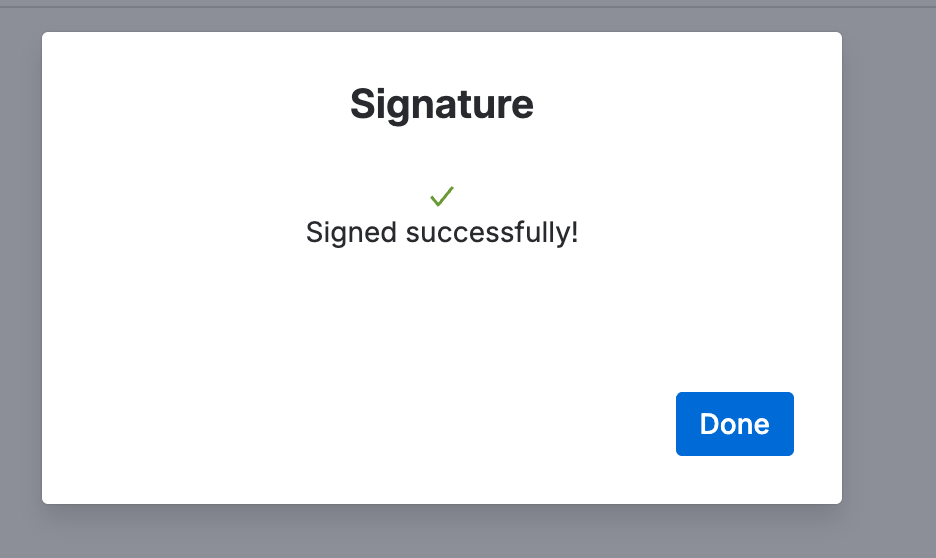
The confirmation shown once the passcode is verified and the signature is recorded. - When every approver has signed, the concession moves to
Approved.
If any approver clicks Reject, the concession moves straight to Rejected, and Rejected is terminal. There is no transition out of it, the resolution is set to Won’t Do, and the record can never be edited again. To get a concession that was rejected, raise a new one.
Revise an approved concession
An approved concession is read-only. To change one, take it back to Draft, which means it has to be approved again.
- Open the approved concession you want to revise.
- Click Revise to move it from
ApprovedtoDraft.Only a user with the Quality Events Administrator role can make this transition.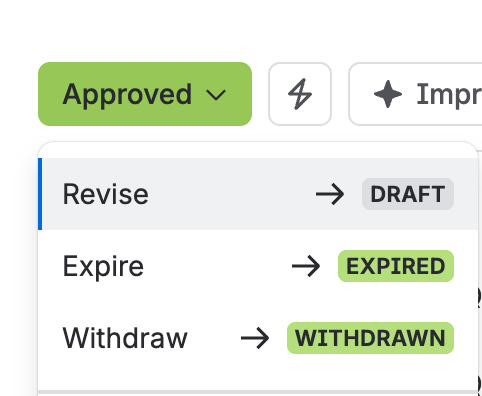
The status menu on an approved concession, with Revise highlighted as the transition back to Draft. - Change what you need, then fill in the approvers field again.
- Click Start Review to move it back to
In review, and run the approval again: each approver clicks Approve or Reject, then enters the one-time password, the same as before.
Withdraw a concession
- Open the approved concession you want to withdraw.
- Enter a justification explaining why the concession is being withdrawn.
- Click Withdraw to move it to
Withdrawn.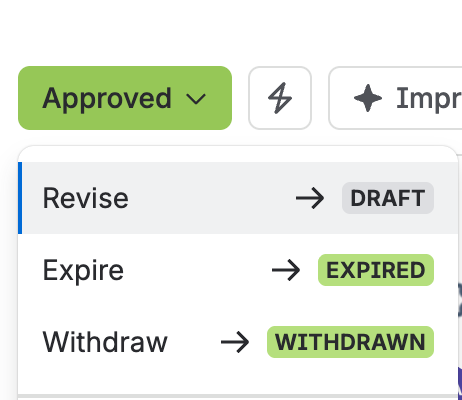
The status menu on an approved concession, listing the Revise, Expire, and Withdraw transitions.
Withdrawing is how you retire a concession you no longer want to rely on, for example because the underlying nonconformity has been resolved properly. Like the other three terminal statuses, Withdrawn has no way back.
Let a concession expire
Every concession carries a validity end date, but reaching that date does not close the record on its own. Expire it explicitly once its validity period has run out.
- Open the approved concession.
- Click Expire to move it to
Expired.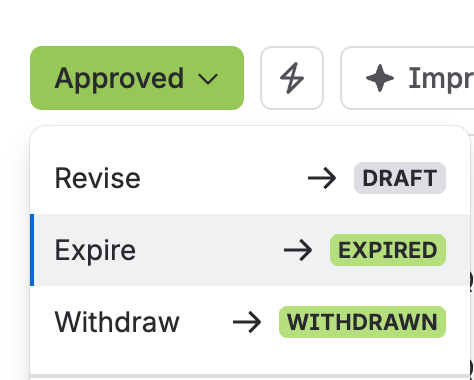
The status menu on an approved concession, with Expire highlighted as the transition that ends it.
Reaching the end of the validity period does not close the record on its own, so a concession can sit in Approved past its end date until somebody expires it. Like the other three terminal statuses, Expired has no way back.
Cancel a concession
Cancel drops a concession that turns out not to be needed, before it ever reaches Approved.
- Open the concession you want to cancel.
- Enter closure remarks explaining why the concession is being canceled.This field is required before the concession can be canceled.

The closure remarks field, filled in with the reason for canceling the concession. - Click Cancel to move it to
Canceled.Only a user with the Quality Events Administrator role can make this transition.
Cancellation only works from Draft or In review. Once a concession reaches Approved, cancel is no longer available. Withdraw it instead. Canceled is terminal: there is no transition out of it, the resolution is set to Won’t Do, and the record can never be edited again.
Resume an overdue approval
If review runs past the period configured in Quality Events admin settings, an automated transition moves the concession from In review to Approval overdue on its own, and notifies whoever is configured to hear about it.
- Open the concession that is overdue.
- Investigate why the approval was not completed in time, for example an approver was unavailable or more information was needed. Document the reason in the Overdue justification field.Overdue justification is required for the Justify & resume transition below.

The overdue justification field, still empty. - Check the due date. It resets automatically, so change it if the new one does not fit.
- Click Justify & resume. The concession returns to
In review, and the approval cycle restarts: each approver clicks Approve or Reject, then enters the one-time password, the same as before.