
Guide
Installing Safety Risks
Installing Safety Risks takes four parts: add the app to your Atlassian site from the Marketplace, enable it in the space that holds your risk work, let the health check repair the configuration, then connect it to the other Qity apps you use.
Install from the Atlassian Marketplace
- Go to the Atlassian Marketplace at marketplace.atlassian.com.

The Atlassian Marketplace home page. - Select Sign in and sign in with your Atlassian account.
- Search for Safety Risk for Jira.
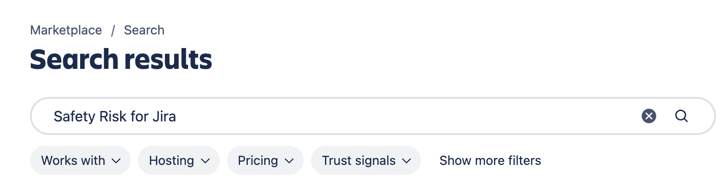
The Marketplace search bar with Safety Risk for Jira entered. 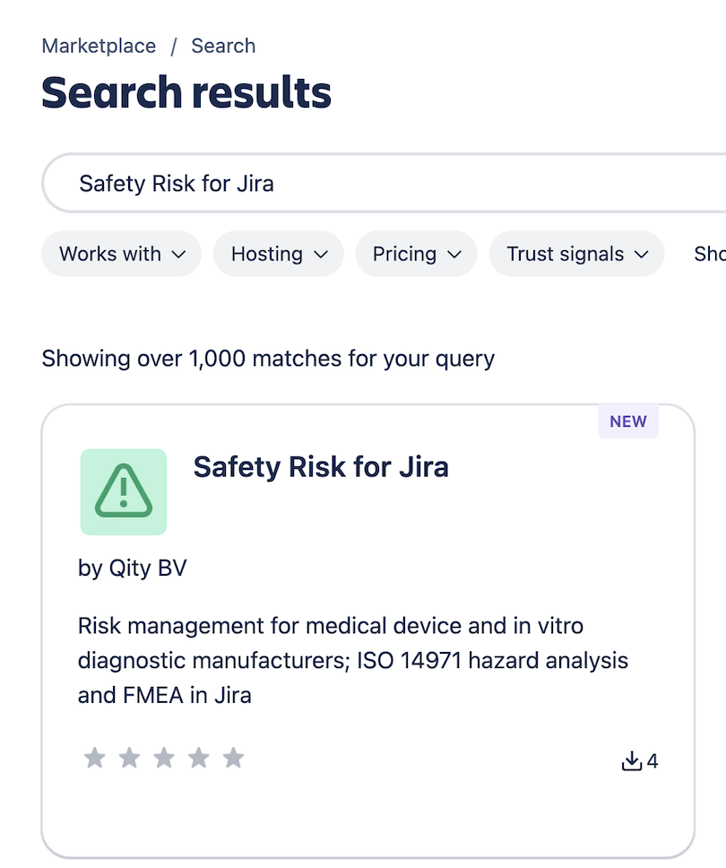
The search results, with Safety Risk for Jira by Qity BV at the top. - Open the app listing and review its details, including supported products, pricing, permissions, and documentation.
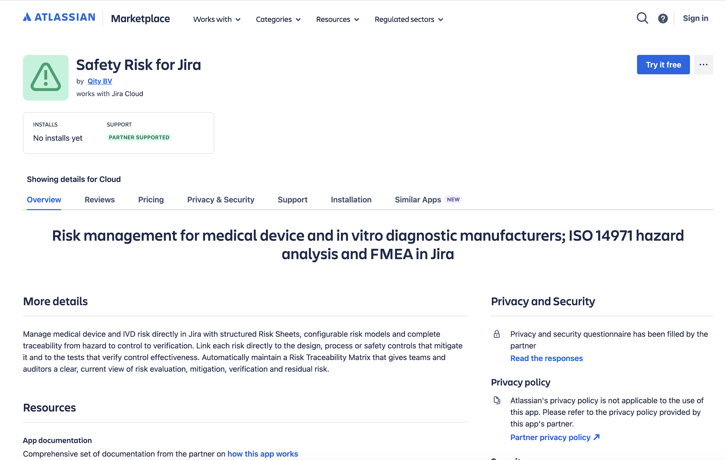
The Safety Risk for Jira listing, with its overview, privacy and security details, and the Try it free button. - Select Try it free, or whichever install option the listing offers.

The Try it free button. - Choose the Atlassian site where you want to install the app.
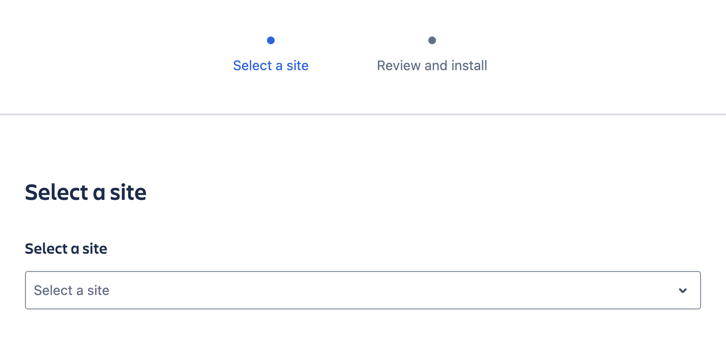
The Select a site step of the install dialog. 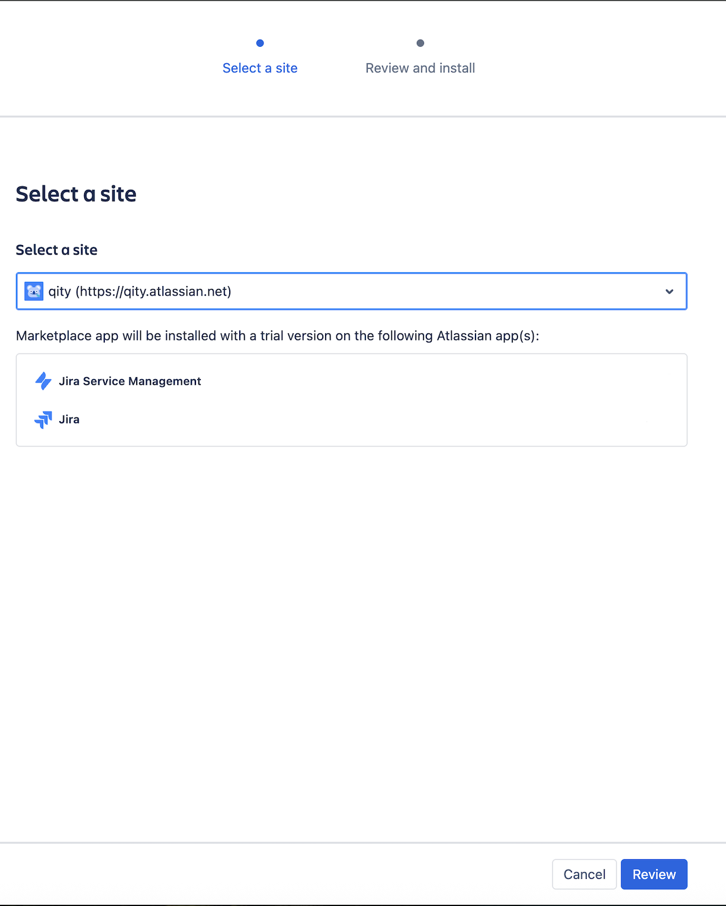
A site selected, with the Atlassian products the app will be installed on listed below it. - Click Review to continue.

The Review button. - Confirm the installation, approve the permissions the app requests, and click Start free trial.
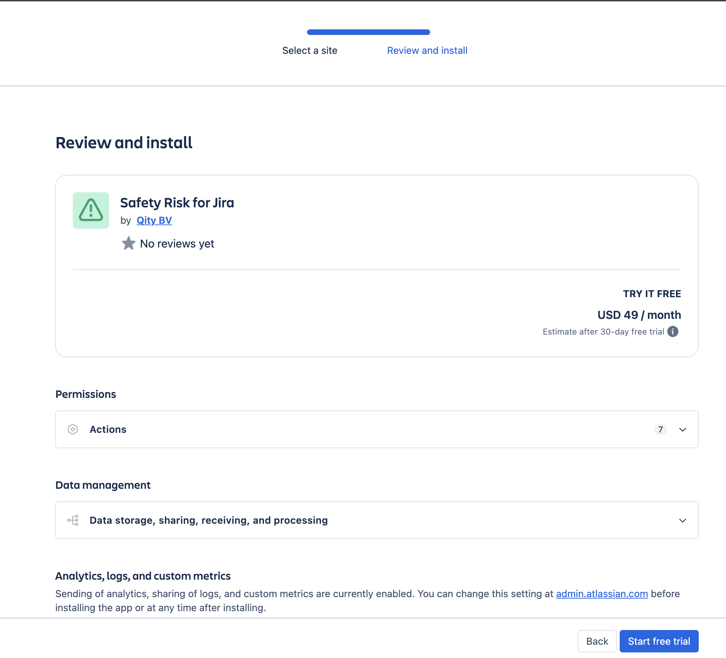
The Review and install step for Safety Risk for Jira, with Start free trial at the bottom. - Wait for the installation to finish, then open Jira to check the app is available. The Added mark on the listing confirms it is installed.
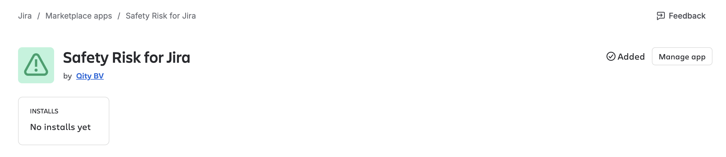
The Safety Risk for Jira listing inside Jira, with the Added mark next to Manage app.
Enable the app and run the health check
Safety Risks is enabled per space. The health check then evaluates the app's configuration in that space, lists anything that is missing, and repairs it for you.
- In Jira, open the space where the app should be enabled. Click ••• next to the space and select Space settings.
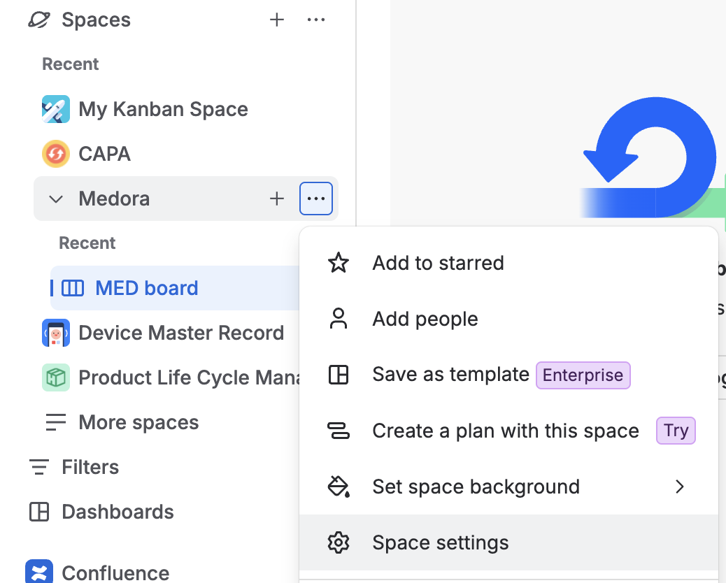
The space menu in the Jira side menu, with Space settings at the bottom. - Under Apps, open Qity Safety Risks and turn on Enable Qity Safety Risk for this project. The health check starts.
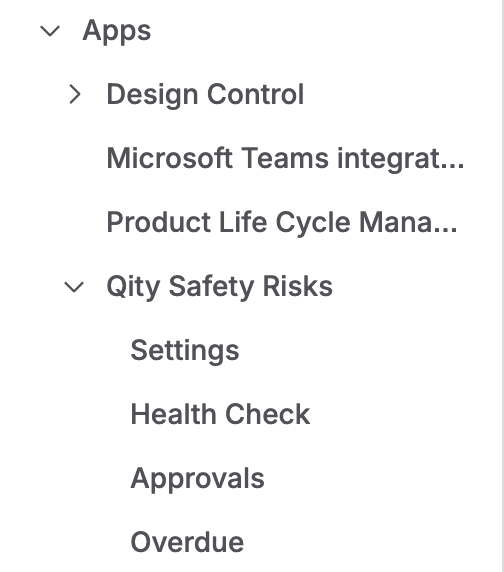
The Apps section of space settings, with Qity Safety Risks expanded to show Settings, Health Check, Approvals, and Overdue. 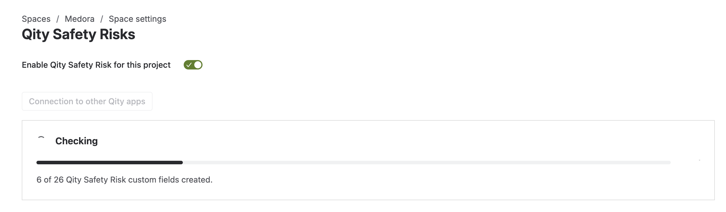
The app enabled for the space and the health check running. - Wait for the health check to finish. It lists every check with its result.
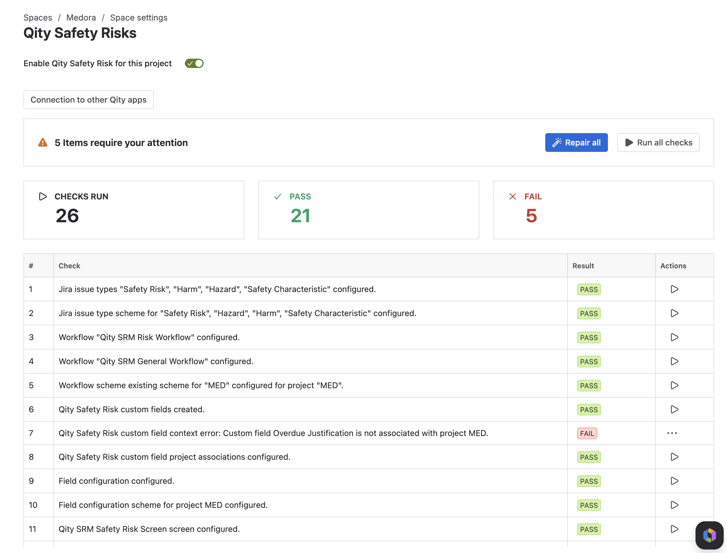
The health check results: 26 checks run, with the items that need attention marked FAIL. - Click Repair all so the app configures the missing items.After a repair, some checks can still need attention. Resolve them one at a time from the Actions column, or click Repair all again.
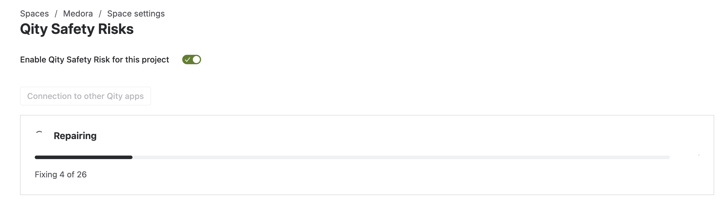
The health check repairing the missing items. - Make sure every check passes.
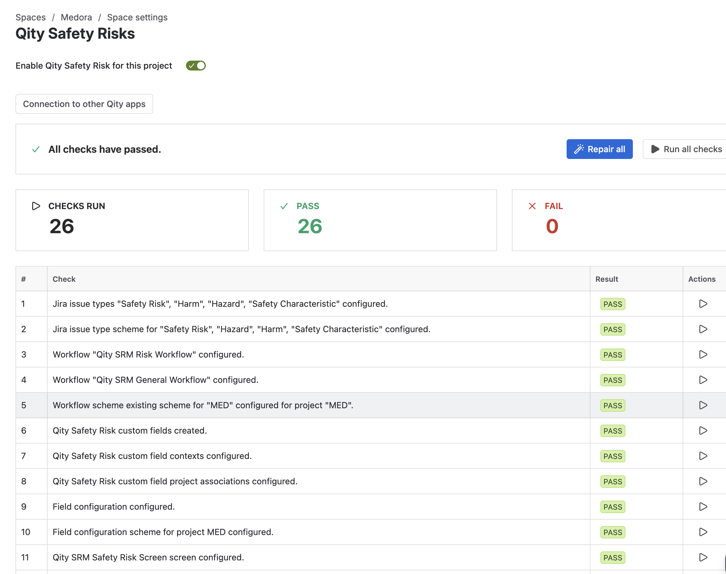
A fully configured health check: all 26 checks passed.
Connect the other Qity apps
- Click Connection to other Qity apps, add or edit the connections to the other Qity apps and their configuration, and click Save.

The Connection to other Qity apps button. 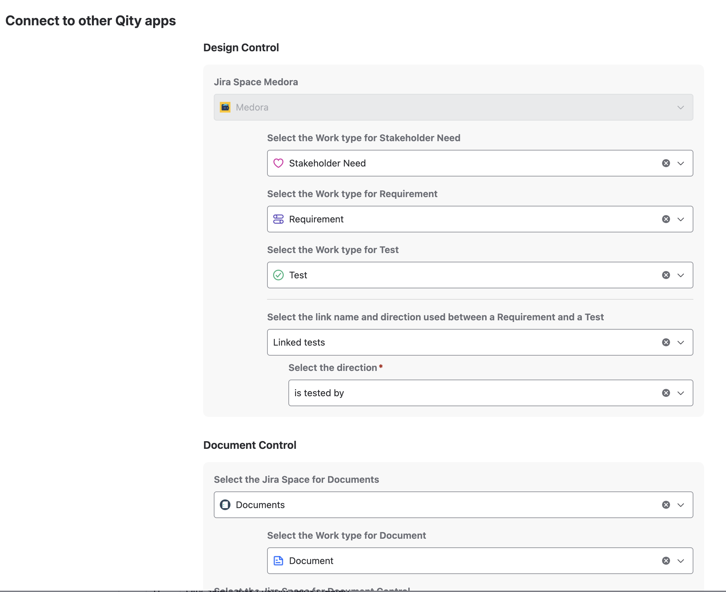
The Connection to other Qity apps dialog, with the Design Control and Document Control connections.
Run the health check again whenever you edit the connections to other apps, and regularly after that, so the configuration stays complete. Set up Safety Risks covers the risk model and approvals that come next.