
Guide
Manage curricula
A curriculum is the training program for a role. It groups the training requirements that role has to complete, which is what lets the app work out who owes which training.
Create a curriculum
- Open the Qity Training dashboard, filter on the Curricula view, and click + New Curriculum.

The New Curriculum button. - Enter the summary and a description covering the curriculum’s purpose, the role it targets, and what the training is meant to achieve.
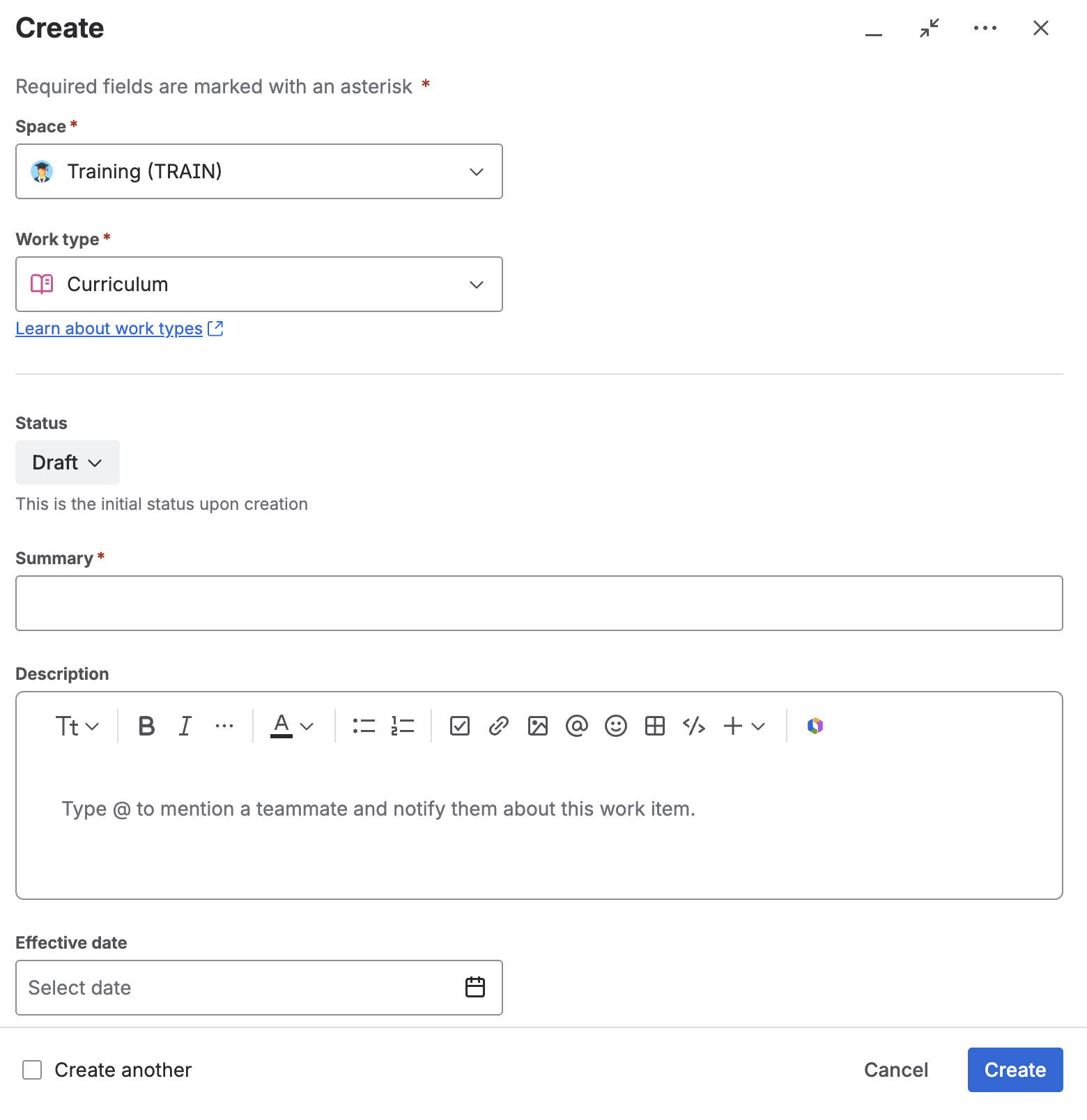
The curriculum details form. - Set the curriculum owner and the effective date.
- Link the roles this curriculum applies to, the training requirements it contains, and the approvers who will sign it off.The role and requirement links decide which training gets assigned to whom, so an incomplete curriculum quietly means missed training. Check both before approving.
Approve a curriculum
- Open the curriculum from the Curricula view on the dashboard.
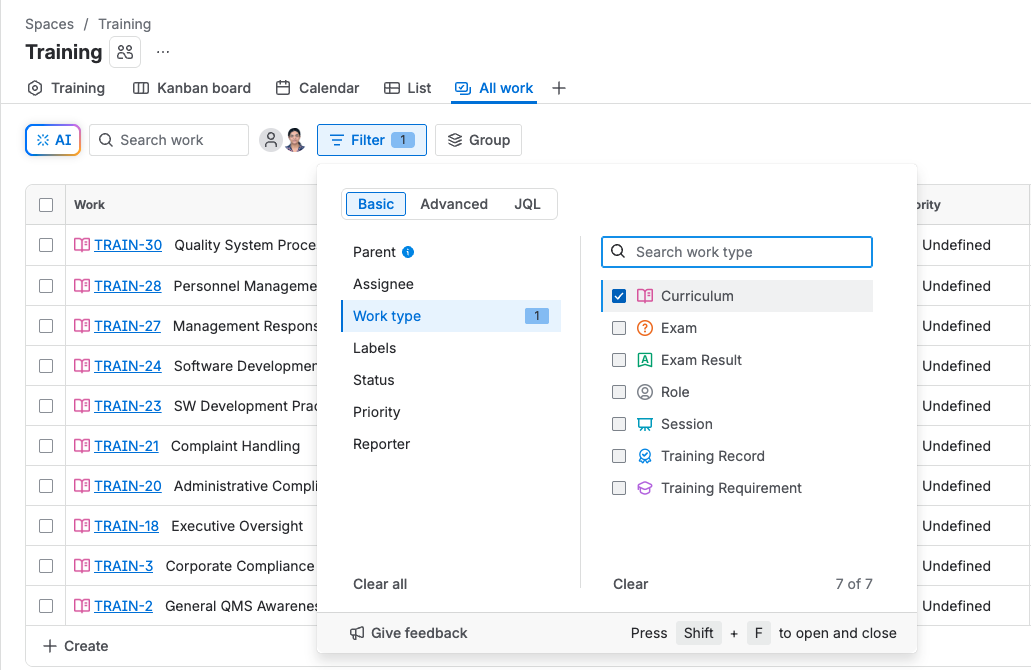
The Curricula view, listing each curriculum and its status. - Verify the curriculum owner, linked training requirements, linked roles, effective date, and approvers.
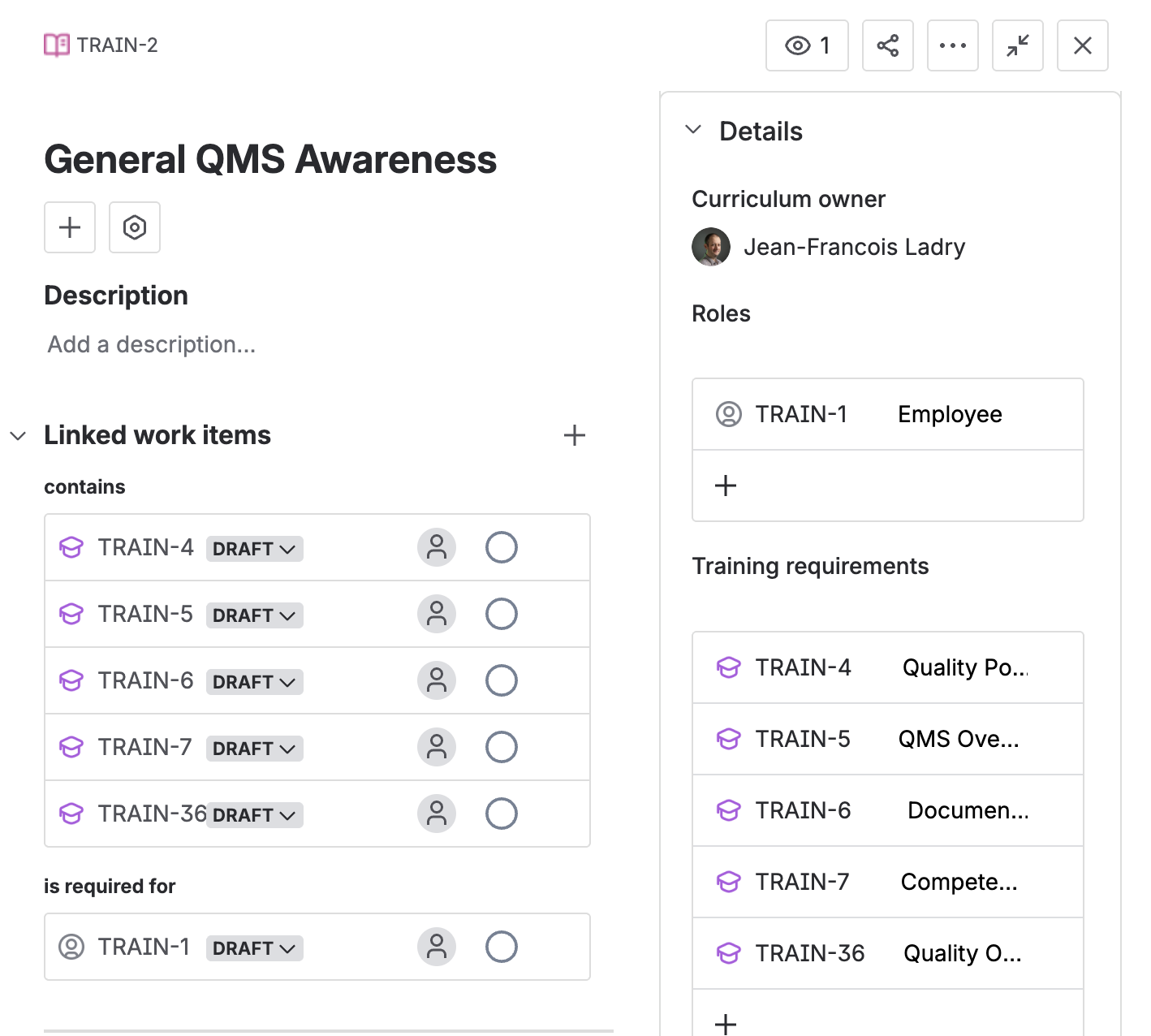
The fields checked before review. - Move the curriculum to In Review.
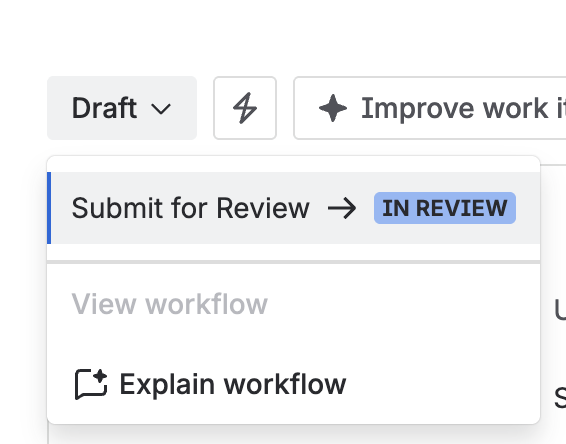
The status menu on a Draft curriculum, offering Submit for Review. - Everyone in the approvers field is invited. Each of them reviews the curriculum individually and approves or rejects it.
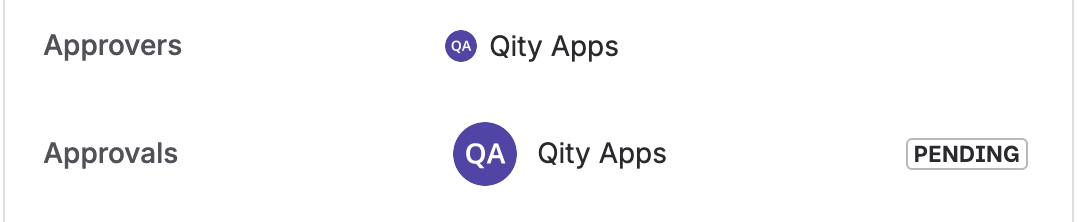
The Approvers field and the resulting Approvals entry, still pending a signature. - As an approver, click Approve or Reject, add a comment where needed, then enter the one-time password sent to your email.
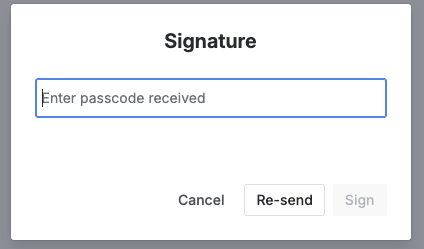
The Signature dialog, with the passcode field and the Sign button. 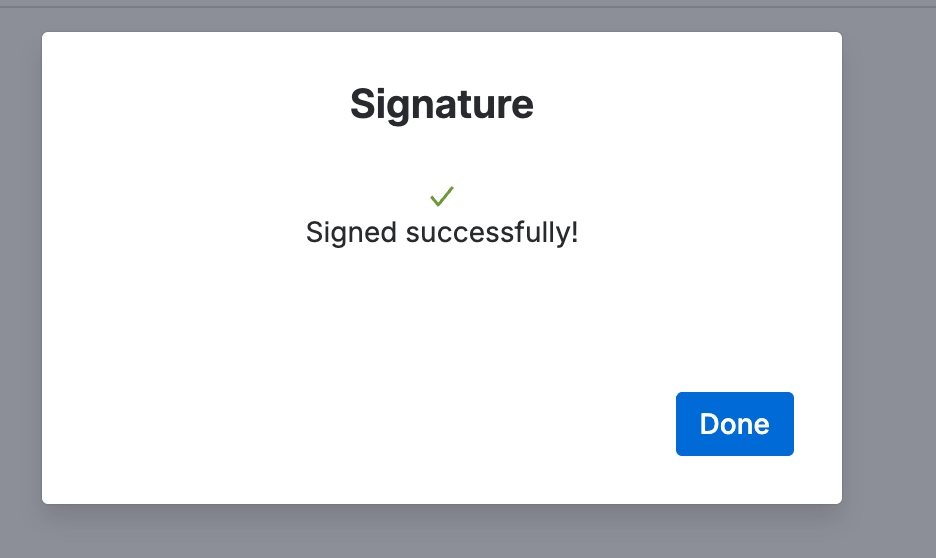
The confirmation shown once the passcode is accepted. - When every approval is in, the curriculum moves to Active.
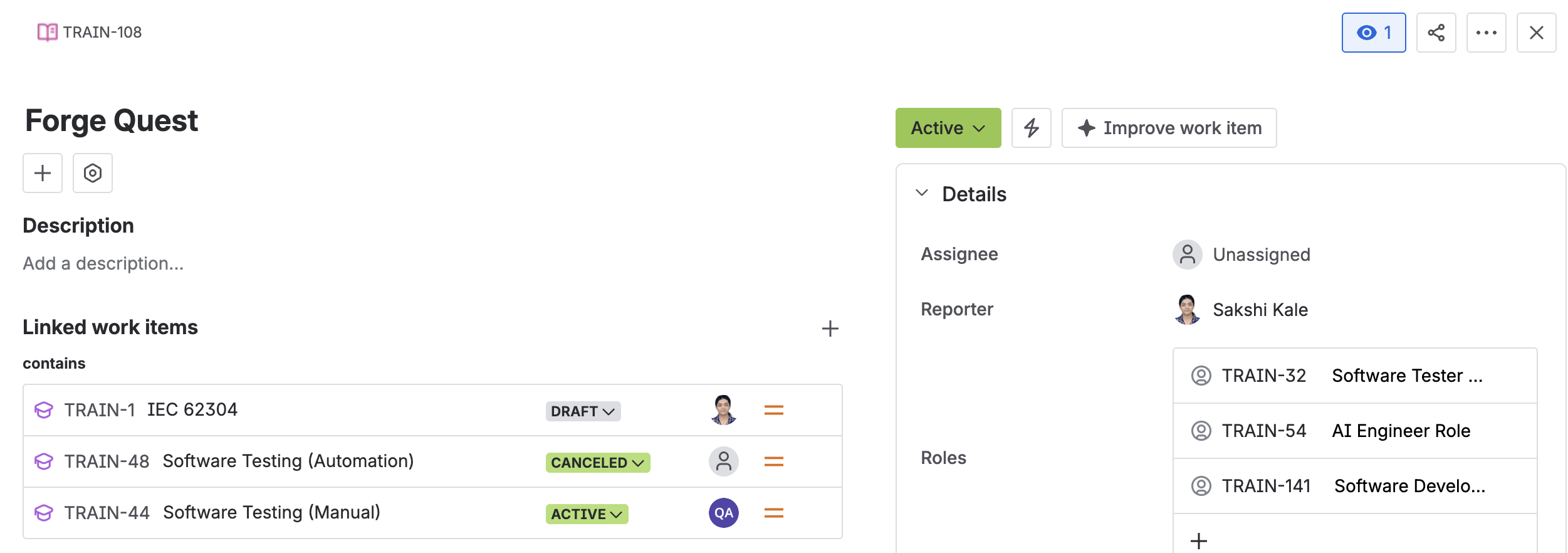
A curriculum in Active status, listing the training requirements it contains and the roles it applies to. - If it was rejected, the curriculum moves to Rejected. The curriculum owner returns it to Draft, addresses the comments, and starts the approval again.
Revise a curriculum
- Open the curriculum and move it from Active to Draft.Before anything changes, the curriculum owner works out what the change affects: running sessions, training records already assigned, linked roles, and linked requirements. Handle the knock-on effects under your Competence and Training Management SOP.
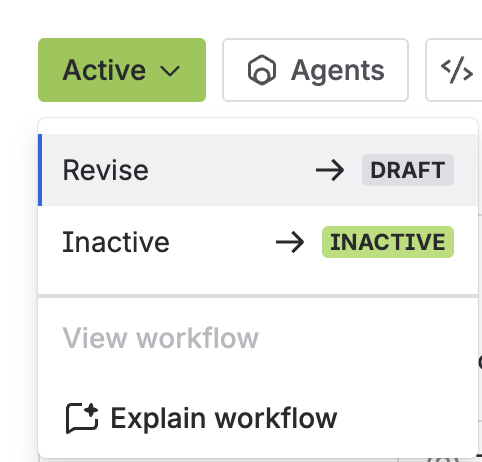
The status menu on an active curriculum, offering Revise to move it back to Draft. - Update the details, check every link is still correct, then move it back to In Review and approve it again.
Retire a curriculum
- Open the curriculum and move it from Active to Inactive.
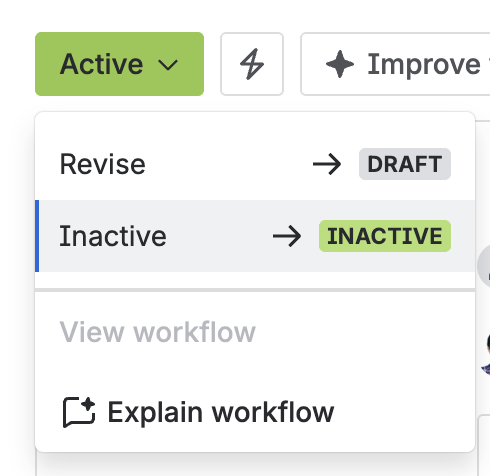
The status menu on an active curriculum, offering Inactive.
Inactive is terminal for a curriculum. It cannot be edited or reactivated afterwards.