
Manage exam results
An exam result is one trainee’s attempt at one exam. It holds the score and the examiner’s assessment, and it feeds the effectiveness check on their training record.
A new exam result is automatically set to the Exam Content security level, so only users with an authorized training role can see it. You do not need to set this yourself.
Create an exam result
- Open the Qity Training dashboard, filter on the Exam Results view, and click + New Exam Result.
The New Exam Result button. - Enter the summary and the trainee. Both are required.Qity suggests a convention such as "Training requirement summary - trainee name - Exam Result".
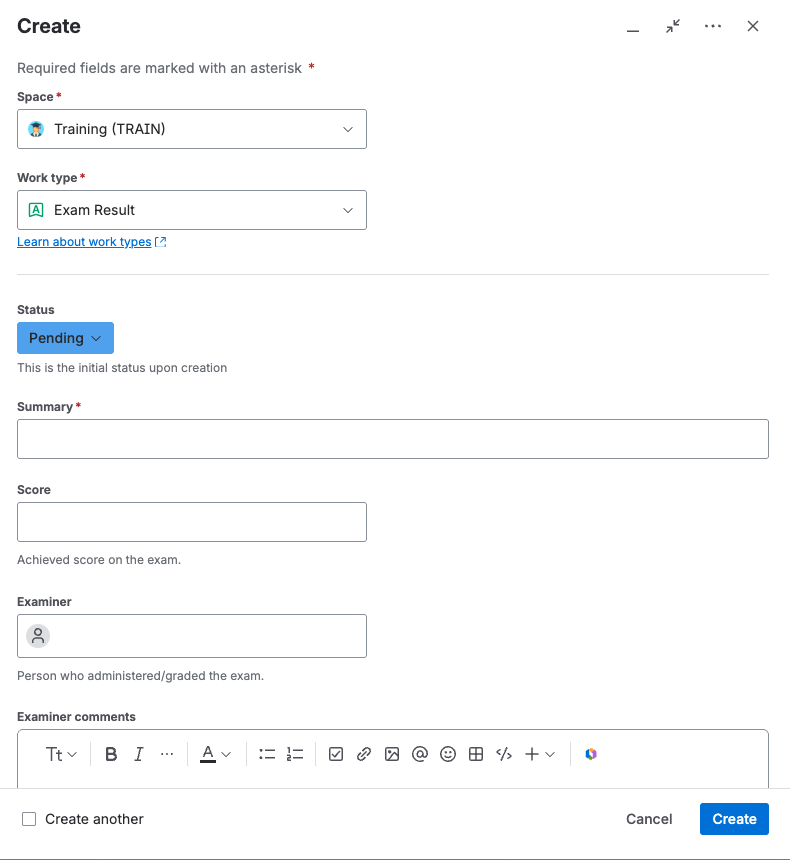
The exam result details form. - Link the result to its exam, and to the trainee’s existing training record if there is one.
Assess an exam result
- Open the result from the Exam Results view on the dashboard.
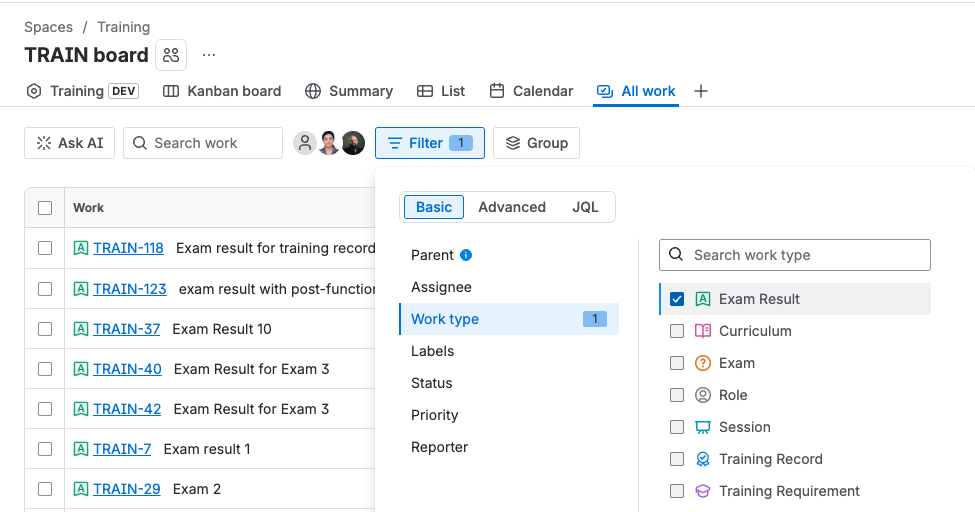
The Exam Results view. - Fill in the exam, the training record, the score, the examiner, any examiner comments, the trainee, and the completion date.
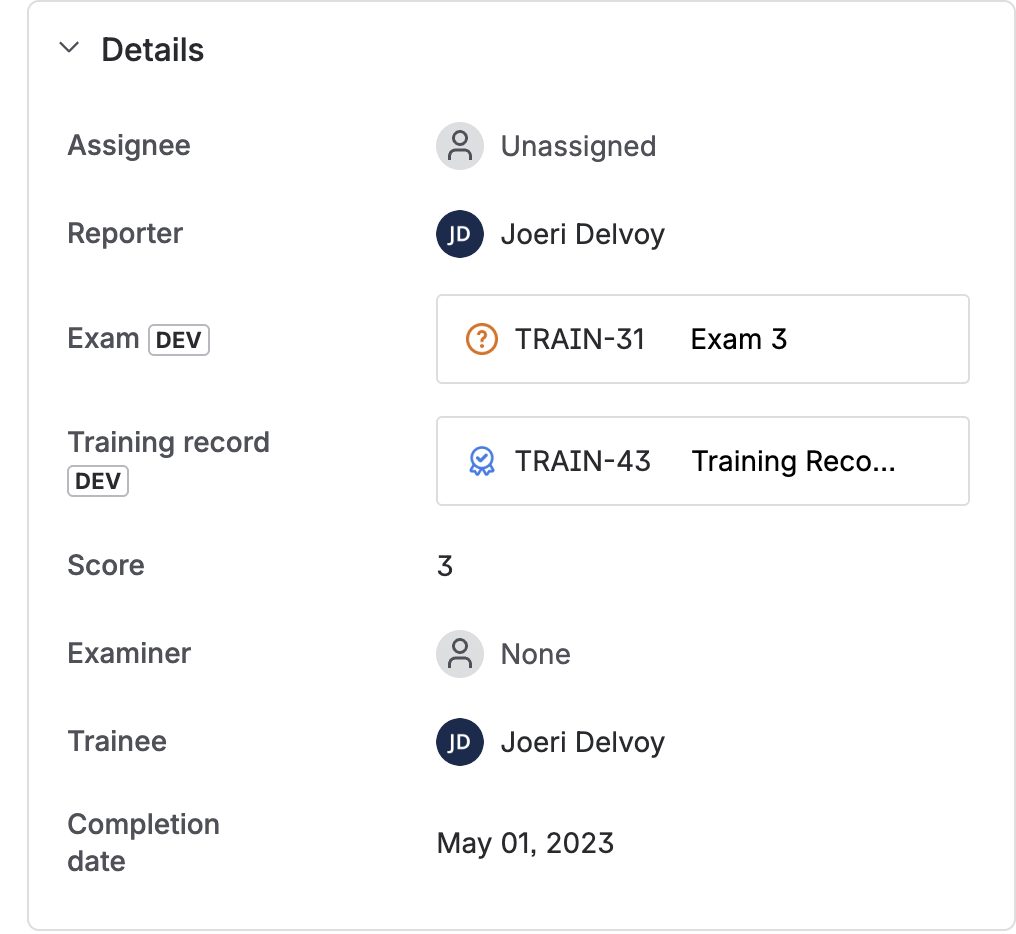
The fields needed to assess a result: exam, training record, score, examiner, trainee, and completion date. - Move the result to Pass or Fail, based on the score against the exam’s pass score.
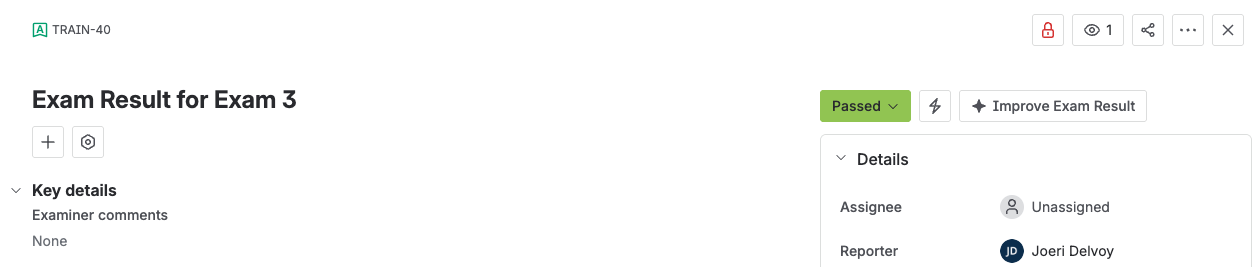
An assessed exam result, showing Passed as its status.
Pass is terminal, and neither a Pass nor a Failed result can be edited while it sits there. Failed is not terminal: it can go back to Pending if a retake is allowed.
Retake an exam, same content
Assess the failed attempt first, whichever route you take. You can return the failed result to Pending and reuse it, but recording the retake as a new result keeps both attempts, which is what an auditor will expect to find.
- Create a new exam result for the trainee.
- Link the new result to the old exam result.
- The trainee sits the exam again, and the new attempt is recorded on the new result.
- Update the score, completion date, and examiner comments with the new attempt’s data, then move it to Pass or Fail.
Retake an exam whose content has changed
- First retire the old exam and create the new one, as described in Manage exams.
- Create a new exam result on the new exam for each trainee who has to be reassessed.
- Link each new result to the correct training record.
- Enter the score, completion date, and examiner comments, then move the result to Pass or Fail.
Cancel or invalidate a result
These two look similar and are not interchangeable.
- To cancel, open the result and move it to Cancelled. This is possible from any status.
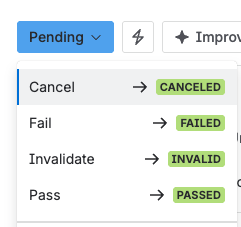
The status menu offering Cancel. - To invalidate, move it to Invalid. This is also possible from any status.
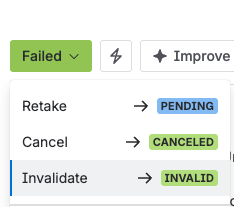
The status menu offering Invalid. - If you invalidated an attempt without revising the exam, create a new exam result on the same exam so the trainee can sit it again.
Cancelled and Invalid are both terminal. Neither can be edited or moved out of afterwards.