
Guide
Manage exams
An exam is a reusable assessment attached to a training requirement. It carries the pass score, and each attempt at it produces a separate exam result.
Create an exam
- Open the Qity Training dashboard, filter on the Exams view, and click + New Exam.
The New Exam button. - Enter the summary and the exam content.Qity suggests a convention such as "Training requirement summary - trainee name - Exam", or whatever your organization agrees.
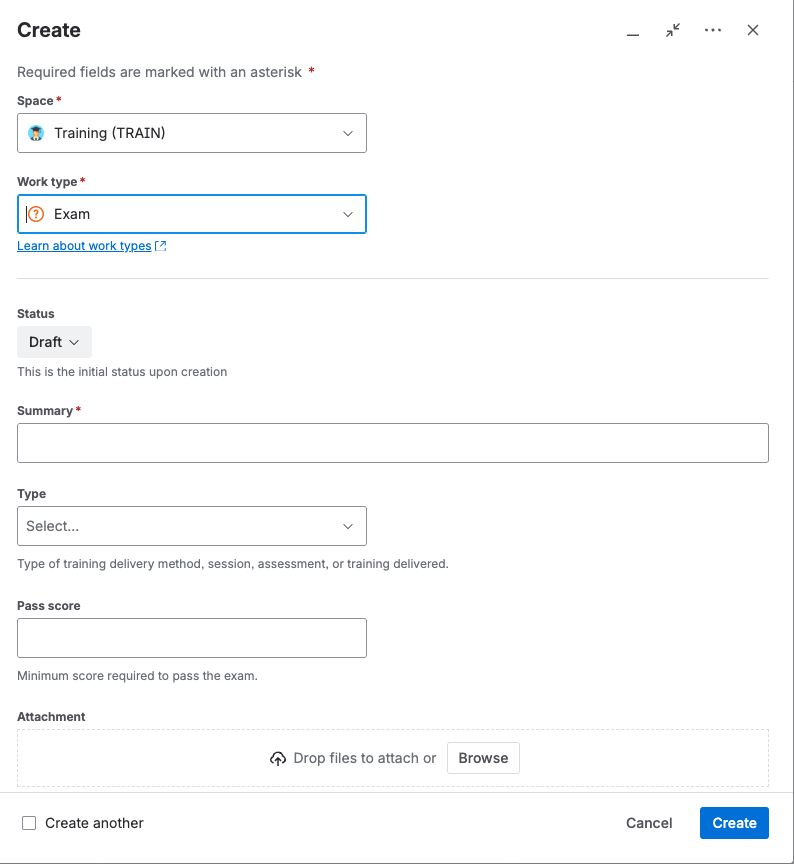
The exam details form.
Approve an exam
- Open the exam from the Exams view on the dashboard, or from the Training space All work tab filtered on the Exam work type.
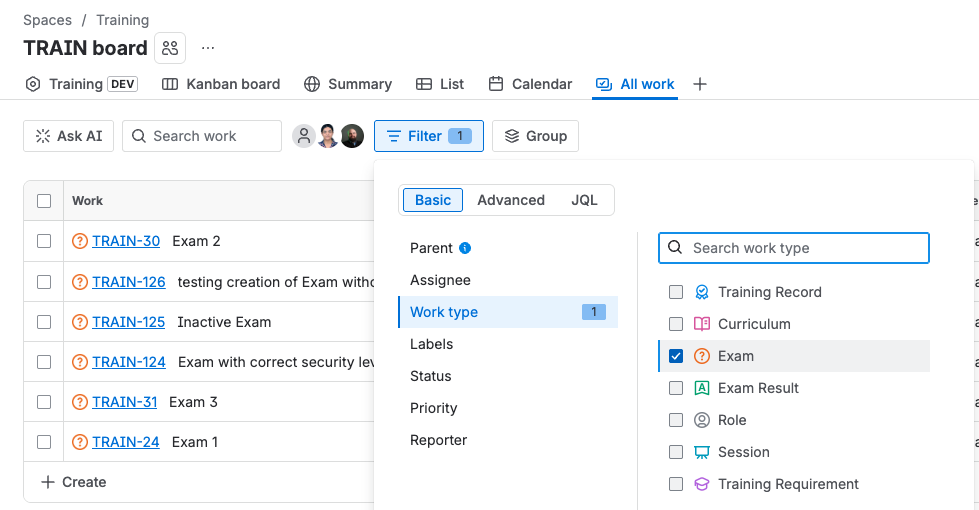
Exam work items listed in the Training space All work tab, filtered on the Exam work type. - Fill in the type, the pass score, and the linked training requirement.The pass score is the minimum a trainee has to reach to pass. Exam results are only linked once the training actually runs, whether that is a session or self training, so leave that field empty for now.
- Move the exam to In Review, then to Approved or Rejected once it has been reviewed.
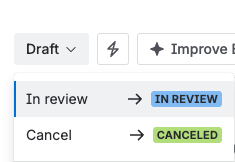
The status menu on a Draft exam, offering In review. 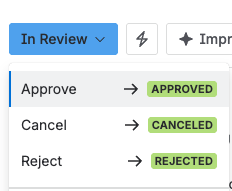
The status menu offering Approved once the review is done.
Revise an exam
Only for typos
Revise an exam only for minor errors that do not change what it asks, such as a spelling fix. If the content changes, retire it and create a new one instead, otherwise results from the old and new content sit under one exam and the record of what each trainee was actually asked is lost.
- Open the exam and move it from Approved or Inactive to Draft.
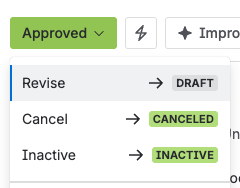
The status menu offering Draft, to reopen an exam for revision. - Correct the error, then move the exam to In Review and approve it again.
Replace an exam whose content has changed
- Create a new exam and enter the new content.Do not clone the old exam. Cloning copies every existing exam result link, which attaches old attempts to the new content.
- Take the new exam through approval to Approved.
- Link the new exam to the same training requirement as the old one, and link the new exam to the old exam.
- Move the old exam to Inactive. It stays visible as a historical record.
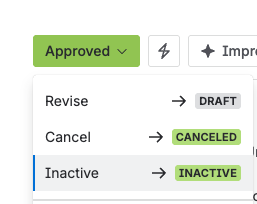
The status menu offering Inactive, to retire the old exam. - Deal with the old exam’s results: passed and failed results stay as they are, pending results must be moved to Invalid, and invalid or cancelled results stay as they are.A trainee who was mid-exam when you replaced it has a pending result, so their attempt is invalidated too. Issue new sessions or records to cover them.
Retire or cancel an exam
- To retire an approved exam that no longer suits, move it to Inactive. You can bring it back to Draft later to revise it.
- To drop an exam entirely, move it to Cancelled, which is possible from any status.
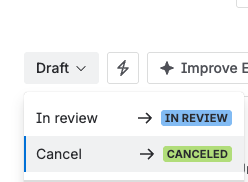
The status menu offering Cancel.
An exam is read-only in Approved and in Inactive, so take it back to Draft before changing anything. Cancelled is terminal and cannot be undone; Inactive is not, and an inactive exam can return to Draft.