
Guide
Manage training records
A training record is one person’s training, from assignment through to a verified sign-off. It is also their competency record, so it is the item an auditor will ask to see.
Create a training record
- Open the Qity Training dashboard, filter on the Training Records view, and click + New Training Record.
The New Training Record button. - Enter the summary and the trainee. The trainee is required before the record can be created.Use a consistent summary so records stay findable. Qity suggests "Training requirement summary - trainee name", or whatever convention suits your organization.
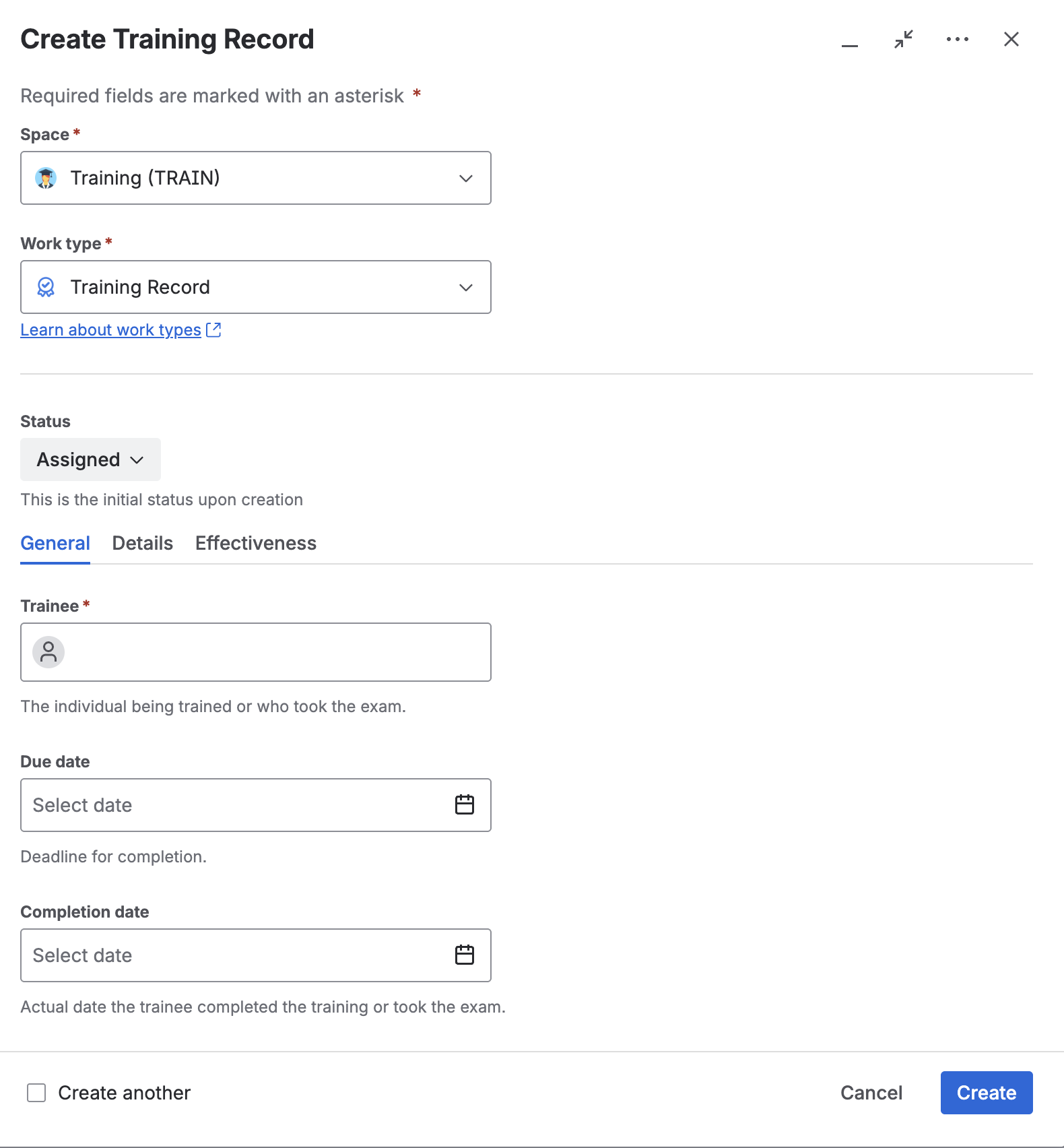
The training record details form. - Set the due date and the expiry date. Neither is mandatory, but without a due date the record can never go overdue, so nothing will chase it.
Run the training
- Open the record from the Training Records view on the dashboard.
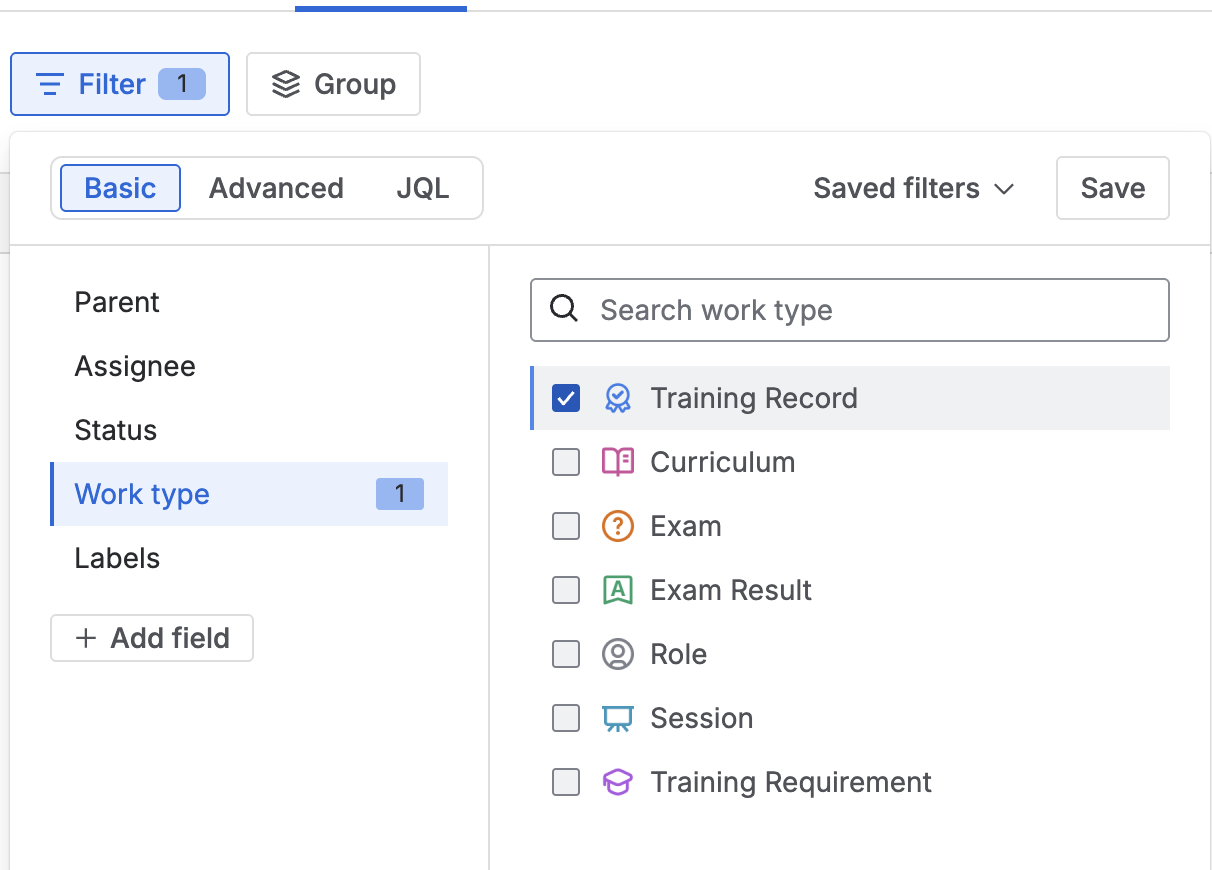
The Training Records view. - Fill in the type, the linked training requirement, the session if there is one, the retraining reason if this is a repeat, the verification method, the due date, and the certificate expiry date.One of the types is Prior learning recognition, for competence gained outside the QMS such as a degree or a certification. Retraining is triggered by a document revision, a recurrence interval, or a failed effectiveness check.
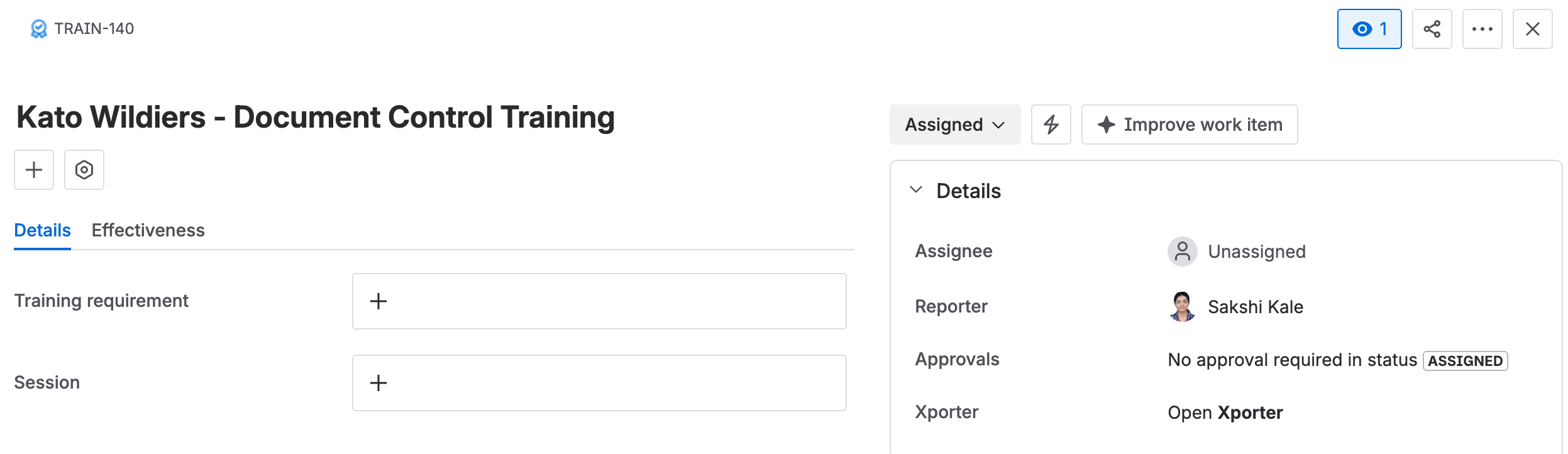
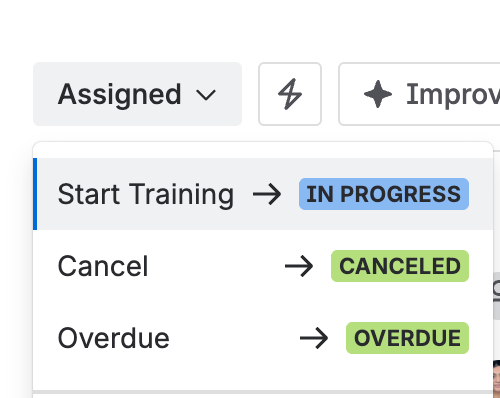
The details tab on a training record, with the training requirement and session links. - When the training starts, move the record to In Progress.
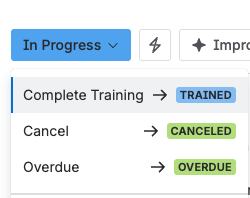
The status menu offering In Progress. - When the training is done, move the record to Trained. The record is then assigned to the trainee so they can complete the training survey.Only the trainee, a training administrator, or a training manager can make this transition.
The status menu offering Trained. - The trainee fills in the survey: relevance to role, quality of materials, any suggested improvements, and training effectiveness.
Verify the training worked
The effectiveness check is what turns "they attended" into "they are competent". It is signed, so it carries the same weight as any other approval.
- Once the trainee has completed the survey, move the record to Effectiveness Check.Only a trainer, a QA approver, or a training manager can make this transition, and Verified by must be filled in first.
- Check the details tab is complete: training requirement, session, type, trainee, due date, completion date, verified by, and verification method.
- Complete the effectiveness tab, including the exam result where the requirement calls for one, and the effectiveness result.
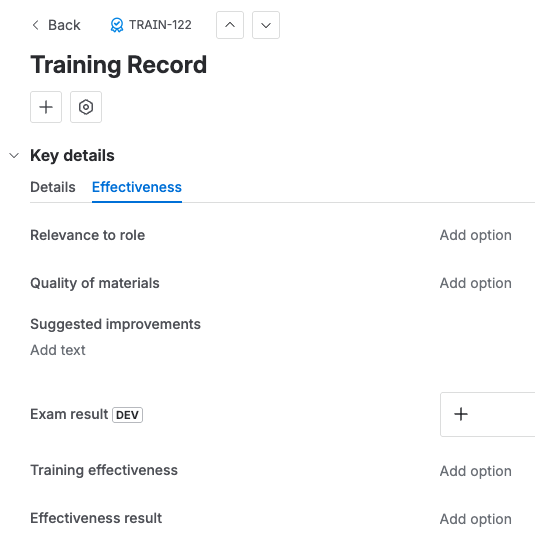
The effectiveness tab: relevance to role, quality of materials, suggested improvements, exam result, training effectiveness, and the effectiveness result. - Everyone in Verified by is invited to approve. They must hold the QA approver or trainer role.

The Approvals entry created from Verified by, still pending a decision. - Each approver clicks Approve or Reject, adds a comment if needed, then enters the one-time password sent to their email.
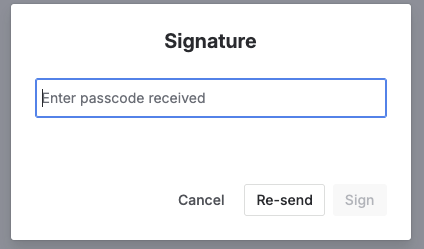
The Signature dialog, with the passcode field and the Sign button. - Once every verifier has signed, the record moves on its own: Closed if the check passed, Failed if it did not.
Closed and Failed are both terminal
Neither can be edited or transitioned afterwards. A failed check is handled by issuing a new training record for the retraining, not by reopening this one.
Statuses you will see without doing anything
OVERDUESet automatically when the due date passes without completion, from Assigned or In Progress. Terminal, so the record cannot be moved on from here.
CLOSEDThe effectiveness check passed. Terminal.
FAILEDThe effectiveness check failed. Terminal. Issue retraining as a new record.
Cancel a record
- Open the record and move it to Cancelled. This is possible from Assigned, In Progress, or Trained.
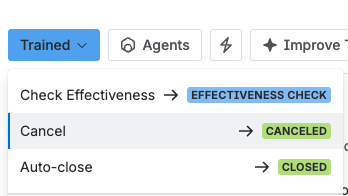
The status menu offering Cancel.
Cancelled is terminal too. A cancelled record cannot be edited or moved out of, so cover any training that still has to happen with a new record.