
Guide
Manage training requirements
A training requirement is one thing people need to learn: an SOP they must read, a machine they must be able to operate, a regulation they need to understand. It carries the materials, the recurrence, and how completion will be verified.
Create a training requirement
- Open the Qity Training dashboard, filter on the Training Requirements view, and click + New Training Requirement.
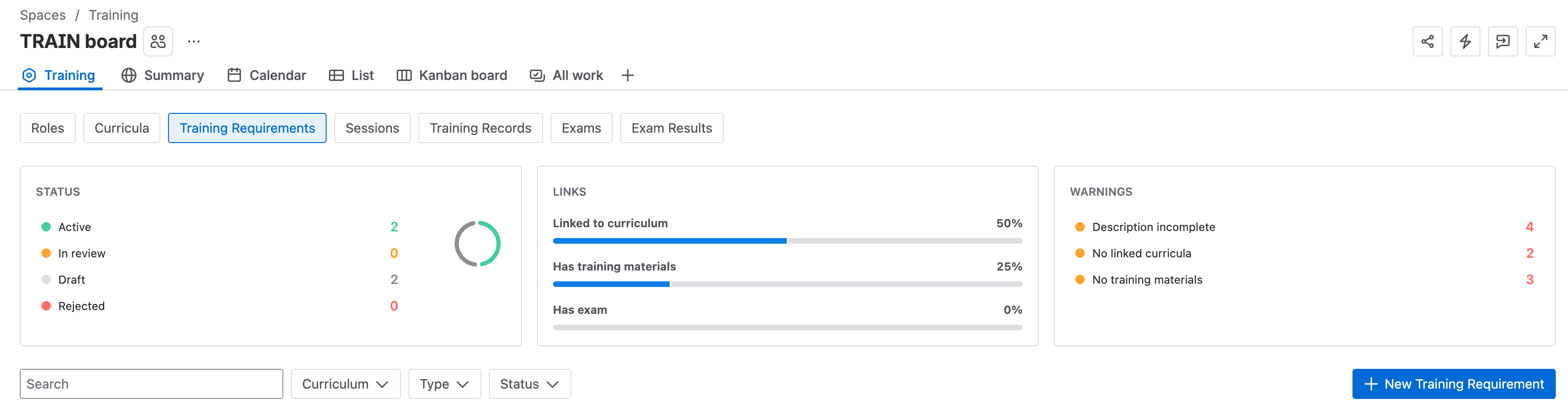
The Training Requirements view, with New Training Requirement at the right of the filter row. - Enter the summary and the type. Both are required before the requirement can be created.
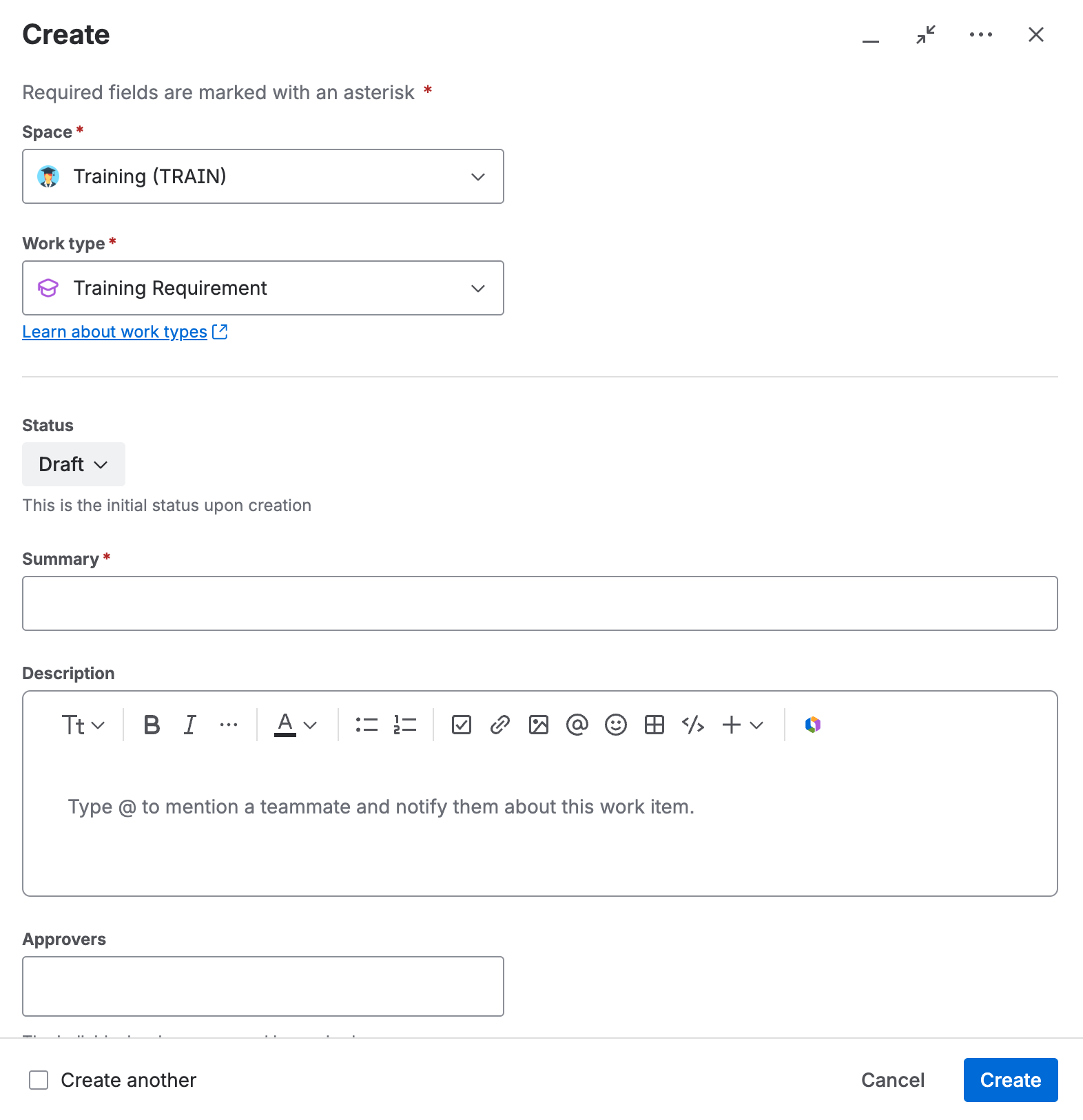
The training requirement details form.
Approve a training requirement
- Open the requirement from the Training Requirements view on the dashboard.
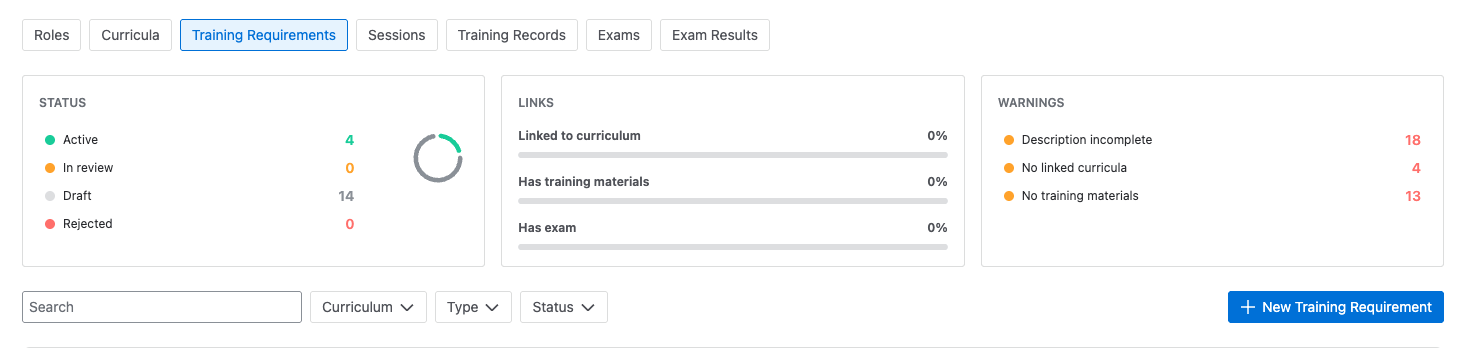
The Training Requirements view, with status counts above the list. - While it is still in Draft, fill in the type, recurrence, verification method, pass criteria, due period in days, curricula, training materials, any prerequisite trainings, and the approvers.Training materials come from two places: files attached to the Jira work item, such as a presentation, and controlled documents from Document Control, which is what you use for SOPs and equipment instructions.
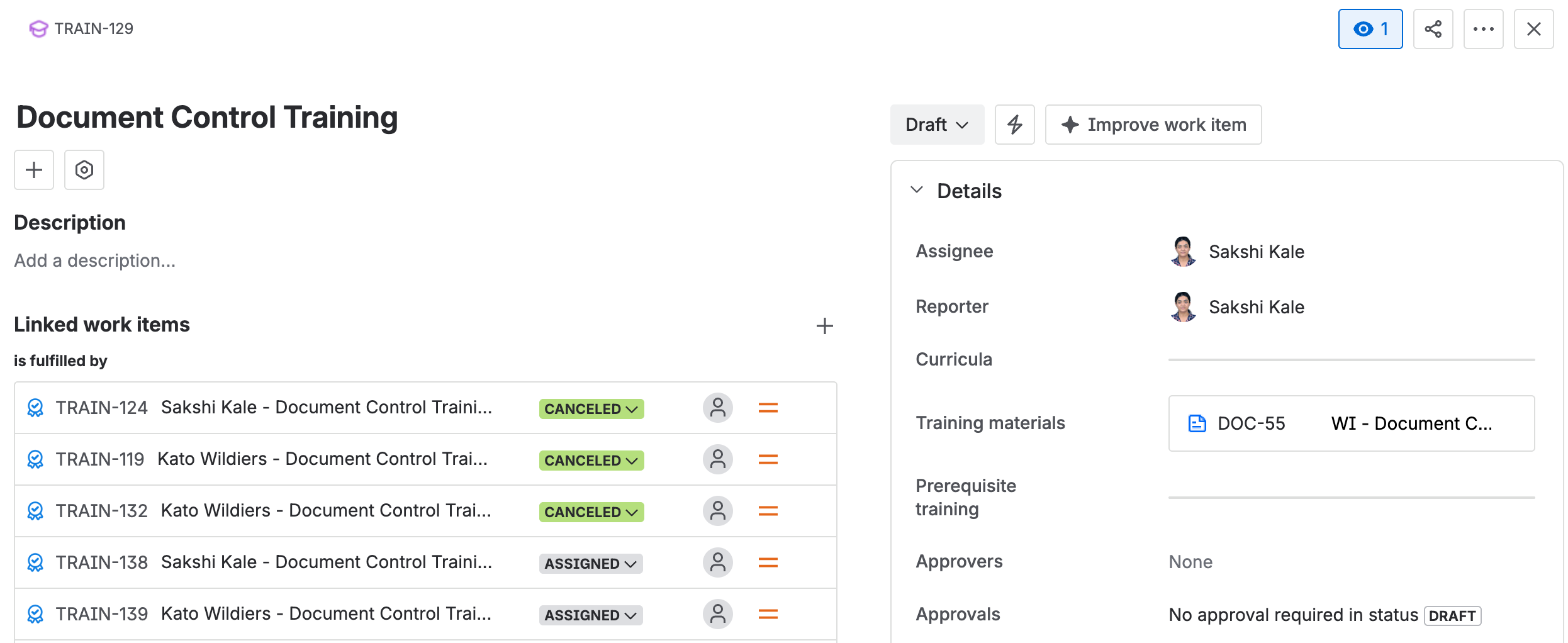
The fields that define how the training runs and how it is verified. - Move the requirement to In Review, then confirm the approvers so they are invited.
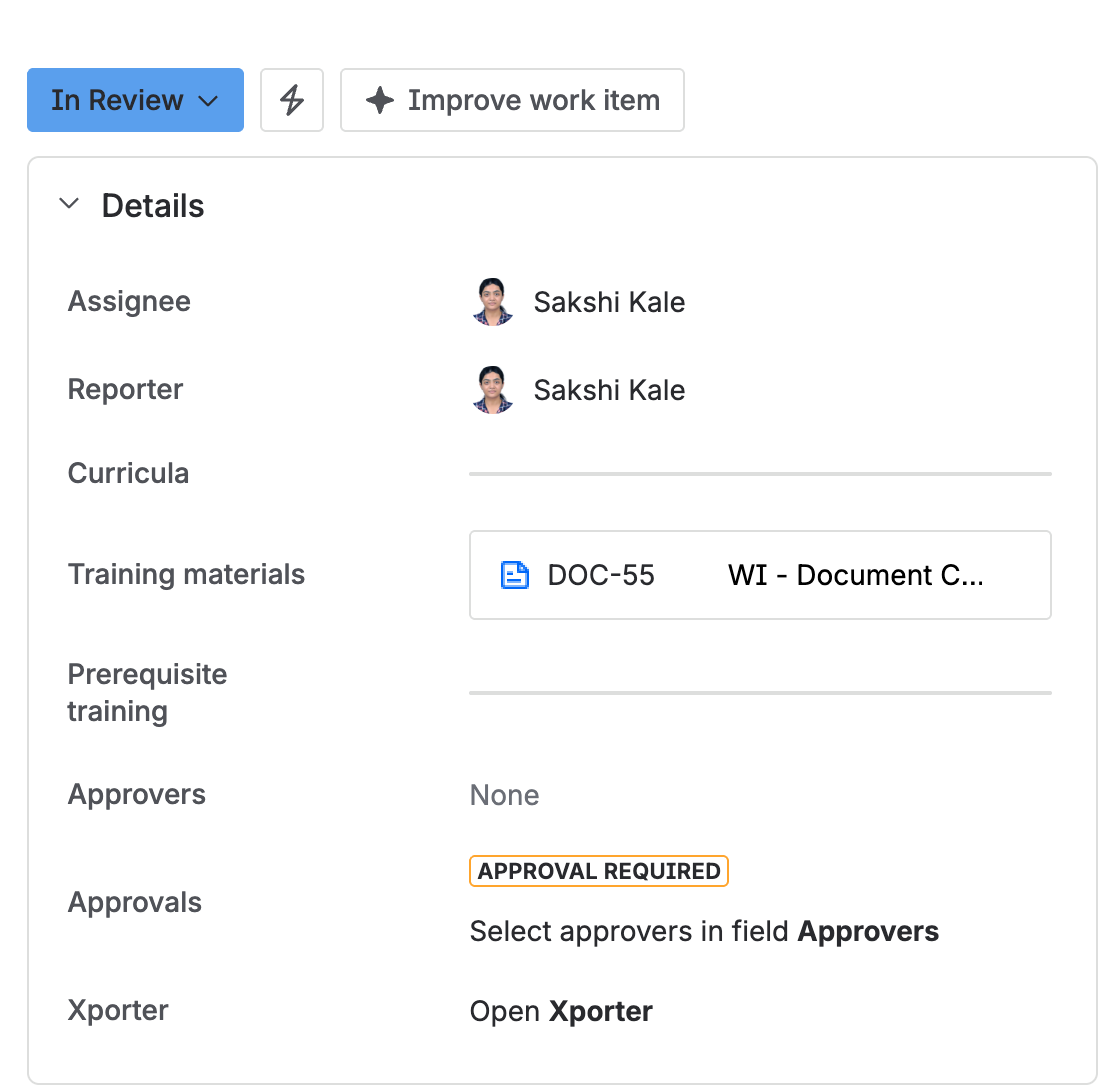
A requirement in review with no approvers set yet: the Approvals panel warns that approvers are still needed. - As an approver, click Approve or Reject, add a comment if needed, then enter the one-time password sent to your email.
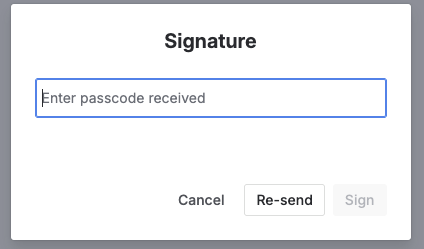
The Signature dialog, with the passcode field and the Sign button. 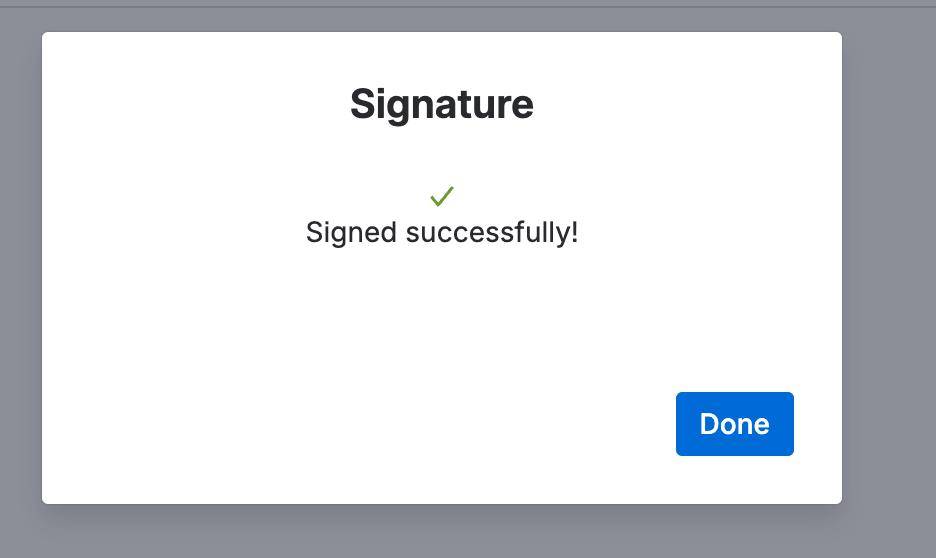
The confirmation shown once the passcode is accepted. - The requirement moves to Active once approved, or Rejected if not. A rejected requirement can be kept as a record, or revised and sent round again.
Revise a training requirement
An active requirement is read-only, so revising one means taking it back to Draft and approving it again.
- Open the requirement and move it from Active or Rejected to Draft.
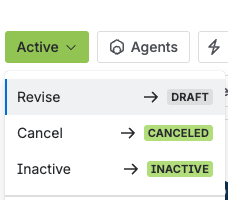
The status menu offering Revise, to move a requirement back to Draft. - Make your edits, move it back to In Review, and approve it again to make it active.
Retire or cancel a training requirement
- To retire one that is in use, open it and move it from Active to Inactive.
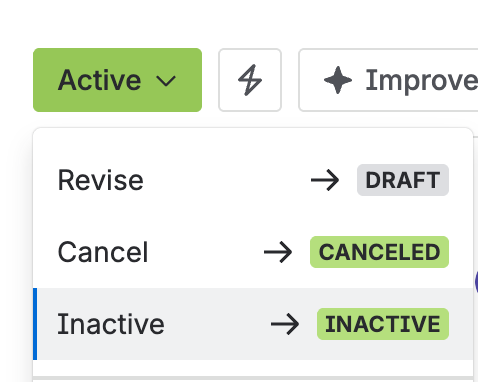
The status menu on an active requirement, offering Inactive. - To drop one entirely, move it to Cancelled. A requirement can be cancelled from any status.
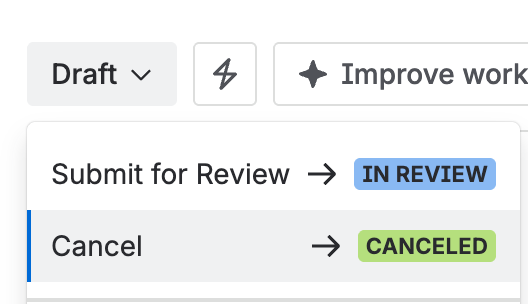
The status menu offering Cancel.
Inactive and Cancelled are both terminal. Neither can be edited or moved out of afterwards. Use Draft to revise; only retire or cancel when you are certain.