
Guide
Manage sessions
A session is a training event delivered to one or more trainees. It sits between the requirement it teaches and the records it produces, which is what makes a group training traceable per person.
Create a session
- Open the Qity Training dashboard, filter on the Sessions view, and click + New Session.
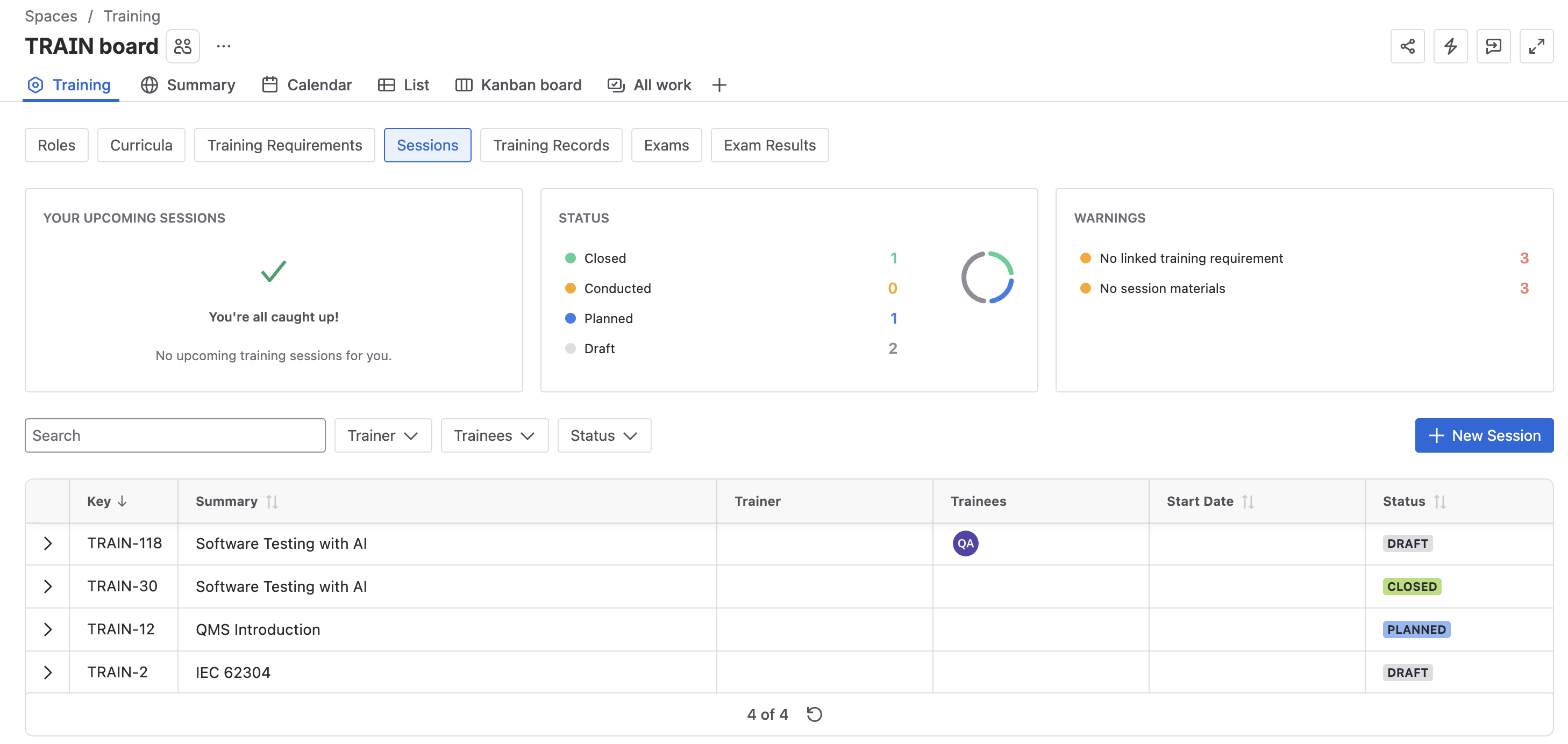
The Sessions view, with New Session at the right of the filter row. - Enter the summary, which is the session title, the trainees if you know them yet, the linked training requirement, and any attachments.
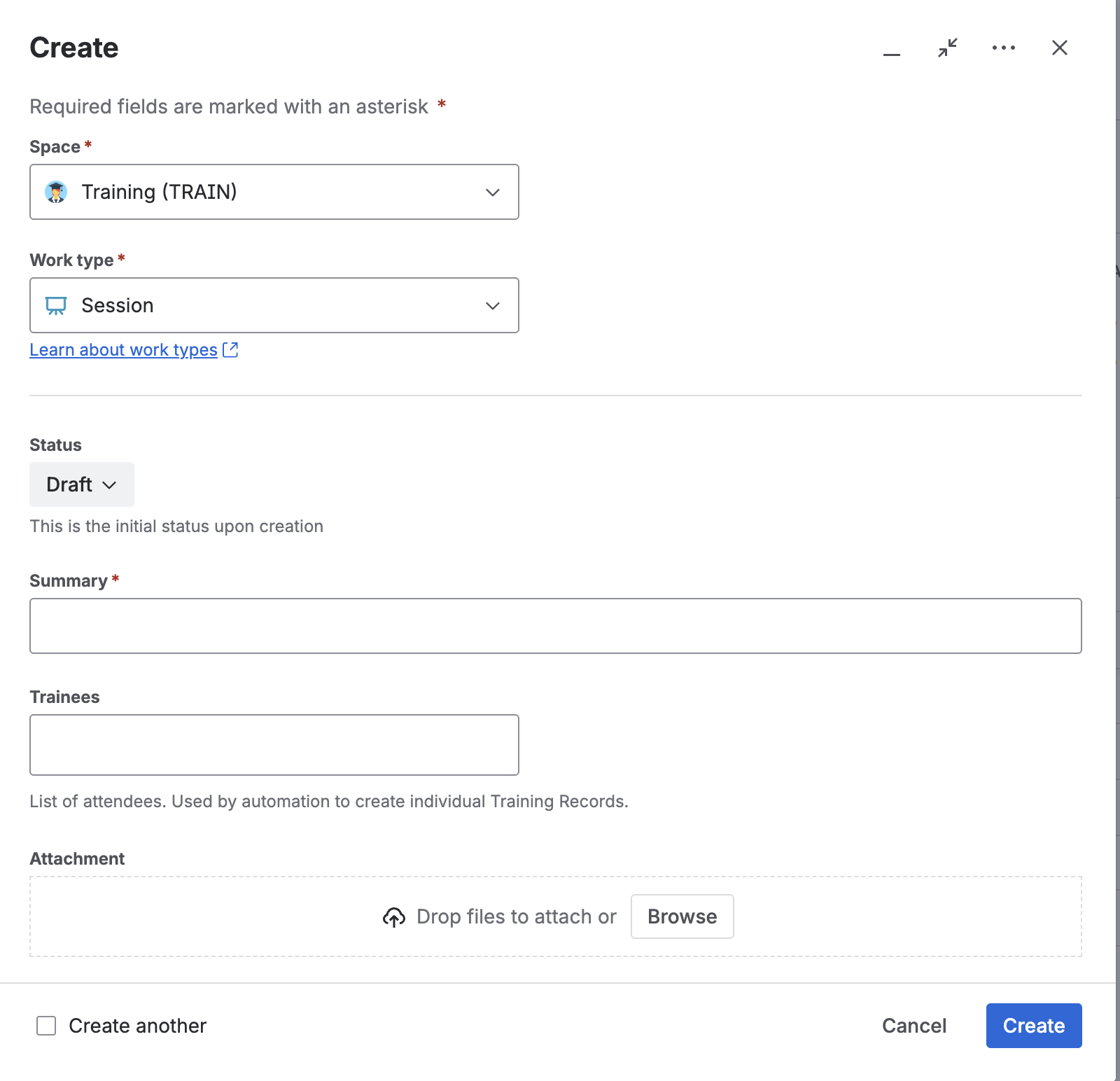
The session details form. - Once the minimum fields are in, move the session to Planned.
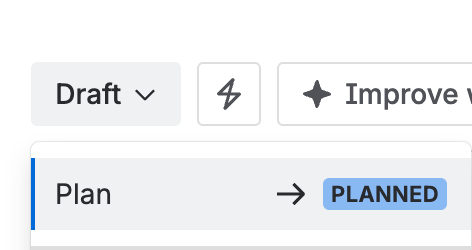
The status menu on a Draft session, offering Plan.
Run a session
- Open the session from the Sessions view on the dashboard.
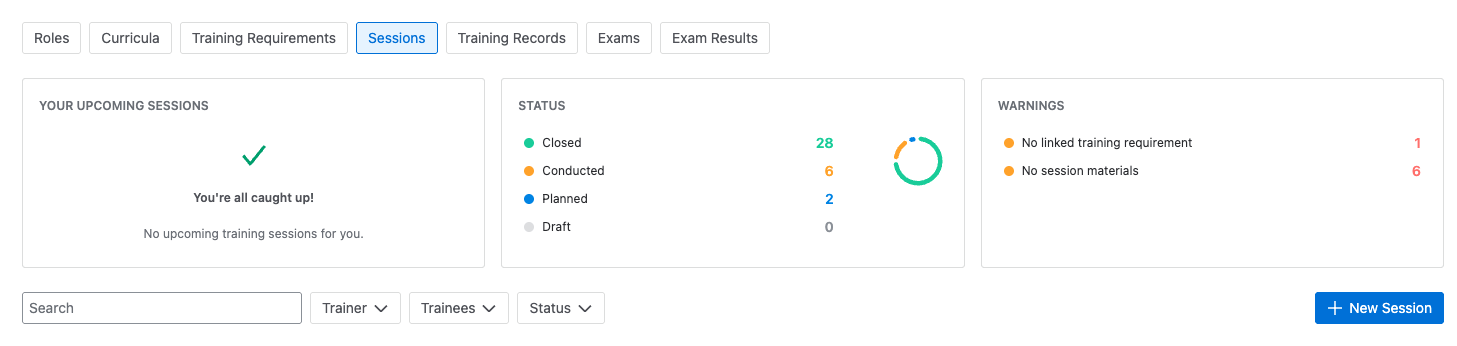
The Sessions view. - Complete the linked training requirement, the type, the trainers, any external providers and external trainer location, the start and end dates, the session notes, the trainees, and the linked training records.The requirement is the session’s input and the records are its output, so linking both is what makes the session traceable. A session with no linked records proves nothing about who was trained.
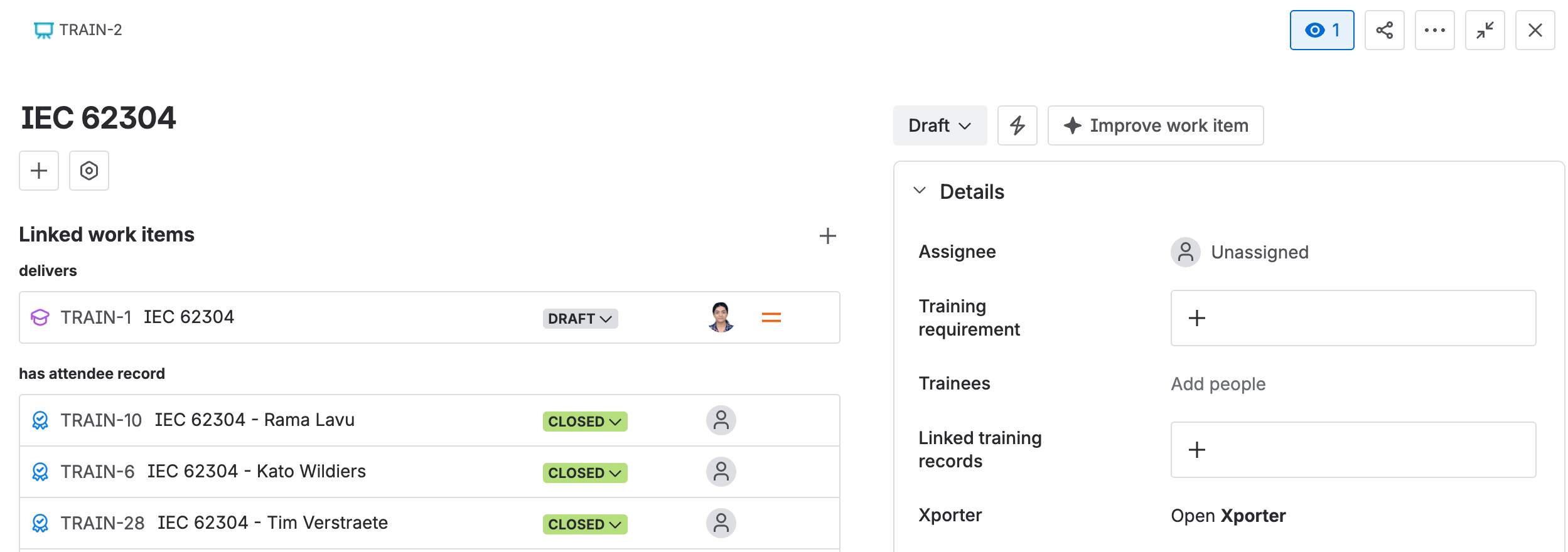
The fields that must be complete before the session is conducted. - After the session has taken place, move it to Conducted.
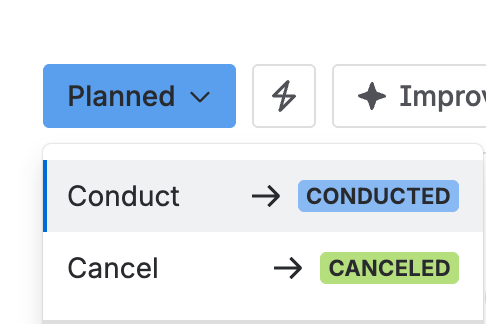
The status menu offering Conducted.
Close or cancel a session
- When a conducted session has all its content recorded, move it to Closed.Before closing, check that every training record has been created and linked, and that the session feedback is recorded on the session itself. Closed is terminal, so anything missing stays missing.
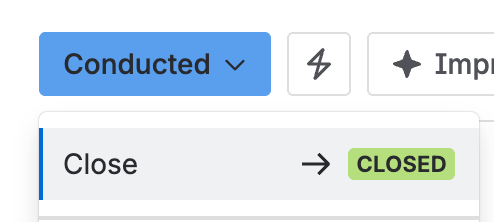
The status menu offering Closed. - To drop a session that has not happened, move it from Planned to Cancelled.
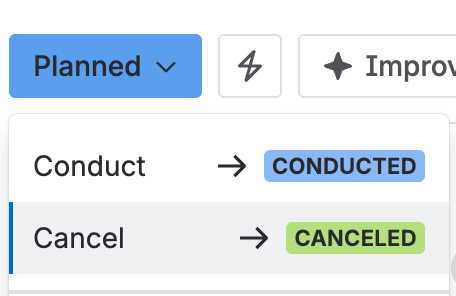
The status menu offering Cancel on a planned session.
Closed and Cancelled are both terminal. A session can only be cancelled while it is still Planned.